Deploying Windows 7 in an enterprise requires more than installing each system from DVD. An answer file supplies the settings needed during Windows Setup. The goal of an unattended installation is to complete setup without prompting for input.
What is an unattended answer file?
An "answer file" is an XML-based file that contains setting definitions and values to use during Windows Setup. In an answer file, you specify various setup options, including how to partition disks, the location of the Windows image to install, and the product key to apply. You can also specify values that apply to the Windows installation, such as the names of user accounts, display settings, and Internet Explorer Favorites. The answer file for Setup is typically called Autounattend.xml or Unattend.xml.
Answer files created in Windows System Image Manager (Windows SIM) are associated with a particular Windows image. This enables you to validate the settings in the answer file to the settings available in the Windows image. However, because any answer file can be used to install any Windows image, if there are settings in the answer file for components that do not exist in the Windows image, those settings are ignored.
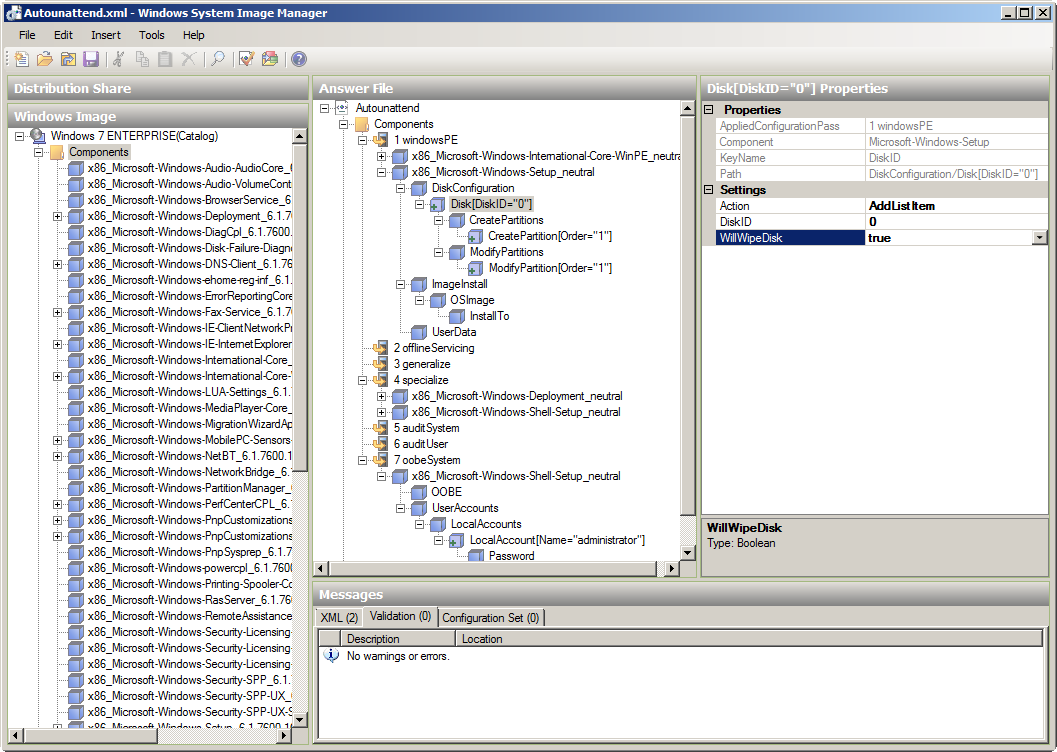
I use Windows System Image Manager (SIM) to create and edit unattended answer files. Below is my sample Autounattend.xml, with basic Windows Setup settings and minimal Windows Welcome customizations.
The Autounattend.xml file contains settings for different components and configuration passes. I use the following components in this sample:
Windows PE: Component - Microsoft-Windows-Setup
Wipe the disk, create and extend a primary partition, format it and install Windows 7. Accept the Microsoft EULA and supply my full name and company.
Windows PE: Component - Microsoft-Windows-International-Core-WinPE
I specify the default language, locale and other international settings for Windows Setup. Other language options can be defined here too. I used this component to configure Dutch, German, Japanese and Chinese settings during my deployment.
Microsoft-Windows-Shell-Setup contains settings that control the Windows shell. I use this component to set my time zone. It can also supply the ComputerName, which I will configure later with Sysprep.
A standard Windows 7 installation disables the Administrator account and prompts for the name of an administrator account. Here I enable the local Administrator account with net.exe. Additional commands can also be added to this component.
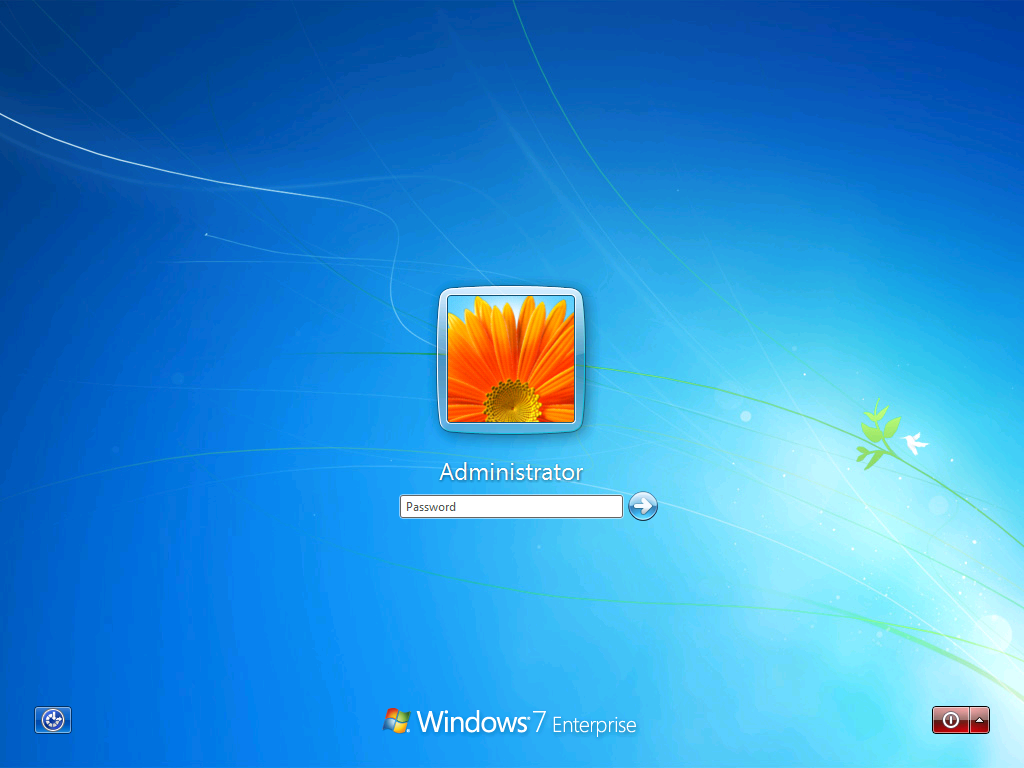
The oobeSystem pass configures the first-boot experience. I supply default settings and hide the corresponding setup steps. I also add a local Administrator account with the password password2011. Change that password if you use the sample file.
<?xml version="1.0" encoding="utf-8"?><unattendxmlns="urn:schemas-microsoft-com:unattend"><settingspass="windowsPE"><componentname="Microsoft-Windows-Setup"processorArchitecture="x86"publicKeyToken="31bf3856ad364e35"language="neutral"versionScope="nonSxS"xmlns:wcm="http://schemas.microsoft.com/WMIConfig/2002/State"xmlns:xsi="http://www.w3.org/2001/XMLSchema-instance"><DiskConfiguration><Diskwcm:action="add"><CreatePartitions><CreatePartitionwcm:action="add"><Order>1</Order><Extend>true</Extend><Type>Primary</Type></CreatePartition></CreatePartitions><ModifyPartitions><ModifyPartitionwcm:action="add"><Active>true</Active><Format>NTFS</Format><Label>LocalWin7HDD</Label><Letter>C</Letter><Order>1</Order><PartitionID>1</PartitionID></ModifyPartition></ModifyPartitions><DiskID>0</DiskID><WillWipeDisk>true</WillWipeDisk></Disk><WillShowUI>OnError</WillShowUI></DiskConfiguration><ImageInstall><OSImage><InstallTo><DiskID>0</DiskID><PartitionID>1</PartitionID></InstallTo><WillShowUI>OnError</WillShowUI></OSImage></ImageInstall><UserData><AcceptEula>true</AcceptEula><Organization>Networknet</Organization><FullName>Networknet</FullName></UserData></component><componentname="Microsoft-Windows-International-Core-WinPE"processorArchitecture="x86"publicKeyToken="31bf3856ad364e35"language="neutral"versionScope="nonSxS"xmlns:wcm="http://schemas.microsoft.com/WMIConfig/2002/State"xmlns:xsi="http://www.w3.org/2001/XMLSchema-instance"><SetupUILanguage><UILanguage>en-US </UILanguage></SetupUILanguage><InputLocale>en-US </InputLocale><SystemLocale>en-US </SystemLocale><UILanguage>en-US </UILanguage><UILanguageFallback>en-US </UILanguageFallback><UserLocale>en-US </UserLocale></component></settings><settingspass="specialize"><componentname="Microsoft-Windows-Shell-Setup"processorArchitecture="x86"publicKeyToken="31bf3856ad364e35"language="neutral"versionScope="nonSxS"xmlns:wcm="http://schemas.microsoft.com/WMIConfig/2002/State"xmlns:xsi="http://www.w3.org/2001/XMLSchema-instance"><TimeZone>W. Europe Standard Time</TimeZone><ComputerName></ComputerName></component><componentname="Microsoft-Windows-Deployment"processorArchitecture="x86"publicKeyToken="31bf3856ad364e35"language="neutral"versionScope="nonSxS"xmlns:wcm="http://schemas.microsoft.com/WMIConfig/2002/State"xmlns:xsi="http://www.w3.org/2001/XMLSchema-instance"><RunSynchronous><RunSynchronousCommandwcm:action="add"><Description>Enable Administrator account</Description><Path>net user administrator /active:yes</Path><Order>1</Order></RunSynchronousCommand></RunSynchronous></component></settings><settingspass="oobeSystem"><componentname="Microsoft-Windows-Shell-Setup"processorArchitecture="x86"publicKeyToken="31bf3856ad364e35"language="neutral"versionScope="nonSxS"xmlns:wcm="http://schemas.microsoft.com/WMIConfig/2002/State"xmlns:xsi="http://www.w3.org/2001/XMLSchema-instance"><OOBE><ProtectYourPC>1</ProtectYourPC><NetworkLocation>Work</NetworkLocation><HideEULAPage>true</HideEULAPage><HideWirelessSetupInOOBE>true</HideWirelessSetupInOOBE></OOBE><UserAccounts><LocalAccounts><LocalAccountwcm:action="add"><Password><Value>cABhAHMAcwB3AG8AcgBkADIAMAAxADEAUABhAHMAcwB3AG8AcgBkAA==</Value><PlainText>false</PlainText></Password><Name>administrator</Name><Group>administrators</Group><DisplayName>administrator</DisplayName><Description>Default Administrator Account</Description></LocalAccount></LocalAccounts></UserAccounts></component></settings><cpi:offlineImagecpi:source="catalog:c:/vm-backup/win7-enterprise/sources/install_windows 7 enterprise.clg"xmlns:cpi="urn:schemas-microsoft-com:cpi"/></unattend>
Create the Autounattend.xml answer file
Open Notepad.
Copy the Autounattend.xml example and paste it into Notepad.
Save the file as Autounattend.xml.
For VMware ESX, Microsoft Hyper-V or Oracle VirtualBox, create a virtual floppy disk and copy the file to it. For a physical system, copy the file to the root of a USB flash drive or burn it to a CD or DVD.
Use the sample as a starting point, then open it in Windows System Image Manager and edit it for your installation. Change the password and be aware that WillWipeDisk is set to true. Windows System Image Manager is part of the Windows AIK deployment tools.
Autounattend.xml media with the sample file
The links below provide the sample answer file and a virtual floppy disk containing it. You can download the virtual floppy disk and mount it in your virtualization environment.
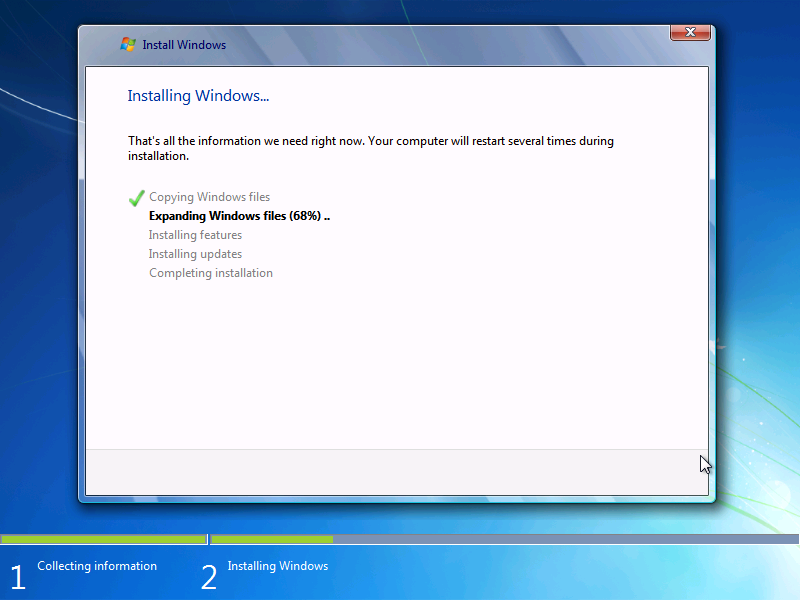
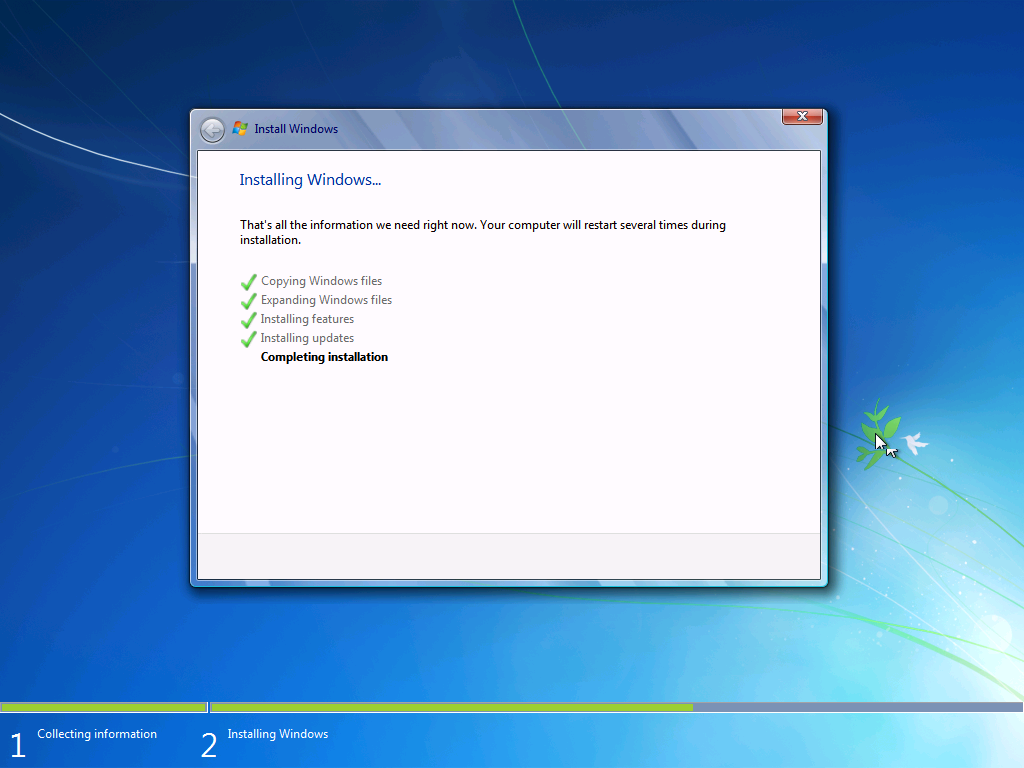
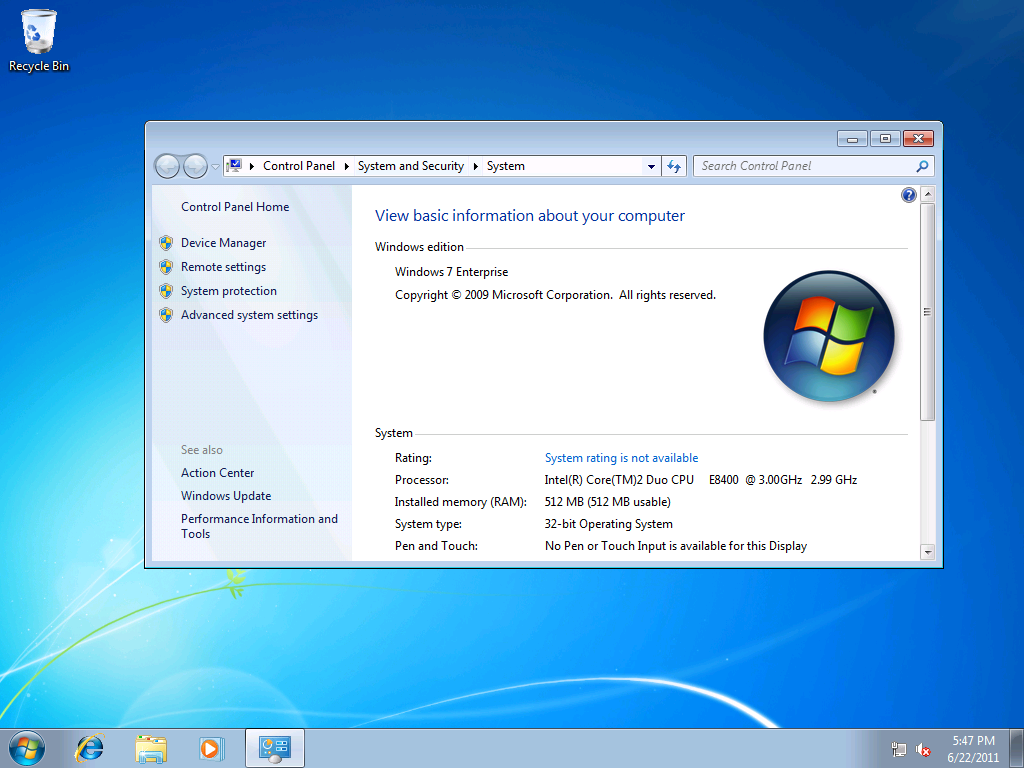
I created a virtual machine on my Hyper-V server, attached Autounattend_HyperV_VirtualPC.vfd and mounted the Windows 7 ISO image. After I started the virtual machine, installation took 10 minutes. Windows 7 finished installing, and I could sign in with the default password2011 password.
Comments from the original WordPress site, kept read-only.
Steven
Thanks for posting this,its good at explaining the different set ups you apply in the windows sim. Could you tell me how to create the .vfd file for the autounattend.xml? I would like to try booting off the virtual floppy with my own answer file.
Steven
its ok I just figured out how to do it there lol..thanks :)
mark
Hi
When i try to open the .xml file using WSIM it wants to know where the catalog .clg file is?
I had same issue here. Please insert a Widows 7 installation disk and locate that file there. If I remember correctly it should be located in Sources folder, otherwise check with 7z compression tool the install.wim content.
Good luck.
-Ivan
Mark
Thanks Ivan! I will try that tomorrow.
Much appreciated
Mike H
Could you tell me how to create the .vfd file for the autounattend.xml
Jason
Hi,
I just tried your tutorial with no success. I just downloaded your file and placed it, by itself, on a USB key. I then started a Windows 7 install from a DVD and it just went right to the "Install Windows" screen, no automation. What am I doing wrong? The reference computer has nothing on it. I just want to see how this all works. The file is called "Autounattend.xml"
Thanks
Jason
rajat
hi i have multiple os images,but i want only a particular os image to be selected for installation.how do i specify setting in DISM so that it takes that os image automatically .
Periyanayagam
Hi..I need to install Windows on C drive Only without affecting other volumes on DISK 0.Is this possible??
Can I simply say what a relief to uncover an individual who actually knows what they're discussing over the internet. You actually understand how to bring a problem to light and make it important. More people need to look at this and understand this side of your story. I was surprised you're not more popular given that you certainly have the gift.
I've been exploring for a little bit for any high quality articles or weblog posts on this sort of house . Exploring in Yahoo I at last stumbled upon this web site. Reading this information So i'm happy to show that I've an incredibly excellent uncanny feeling I discovered just what I needed. I most definitely will make sure to do not omit this site and give it a glance regularly.
Reggie Philip
Hello Ivan,
A question please - Is there a way to rename the Adminstrator account to aka (abc) and log into abc (administrator) after the sysprep is complete? Basicly if thrtr id a line in the answer file where Adaminstrator can be renamed?
Thanks for posting this,its good at explaining the different set ups you apply in the windows sim.
Could you tell me how to create the .vfd file for the autounattend.xml? I would like to try booting off the virtual floppy with my own answer file.
its ok I just figured out how to do it there lol..thanks :)
Hi
When i try to open the .xml file using WSIM it wants to know where the catalog .clg file is?
Hi Mark,
I had same issue here. Please insert a Widows 7 installation disk and locate that file there. If I remember correctly it should be located in Sources folder, otherwise check with 7z compression tool the install.wim content.
Good luck.
-Ivan
Thanks Ivan! I will try that tomorrow.
Much appreciated
Could you tell me how to create the .vfd file for the autounattend.xml
Hi,
I just tried your tutorial with no success. I just downloaded your file and placed it, by itself, on a USB key. I then started a Windows 7 install from a DVD and it just went right to the "Install Windows" screen, no automation. What am I doing wrong? The reference computer has nothing on it. I just want to see how this all works. The file is called "Autounattend.xml"
Thanks
Jason
hi
i have multiple os images,but i want only a particular os image to be selected for installation.how do i specify setting in DISM so that it takes that os image automatically .
Hi..I need to install Windows on C drive Only without affecting other volumes on DISK 0.Is this possible??
How to auto deploy an app (run "app /s" install it silently) with Win7 deploy?
Marvelous, what a blog it is! This weblog provides valuable information to us, keep it up.
Can I simply say what a relief to uncover an individual who actually knows what they're discussing over
the internet. You actually understand how to bring a problem to light and make it important.
More people need to look at this and understand this side of your story.
I was surprised you're not more popular given that you certainly have the gift.
I've been exploring for a little bit for any high quality articles or weblog posts on this sort of house
. Exploring in Yahoo I at last stumbled upon this web site.
Reading this information So i'm happy to show that I've an incredibly excellent uncanny
feeling I discovered just what I needed. I most definitely will make sure to do
not omit this site and give it a glance regularly.
Hello Ivan,
A question please - Is there a way to rename the Adminstrator account to aka (abc) and log into abc (administrator) after the sysprep is complete? Basicly if thrtr id a line in the answer file where Adaminstrator can be renamed?
Kind Regards