Apple: Upgrade a MacBook Pro with an SSD
I had wanted to upgrade my MacBook Pro for months. I finally bought the replacement components. To open it, I needed:
- A Phillips screwdriver.
- A tri-wing screwdriver.
Replace the components in 30 minutes
The upgrades were a Samsung SSD EVO 250 GB drive, a new battery and 8 GB of RAM.
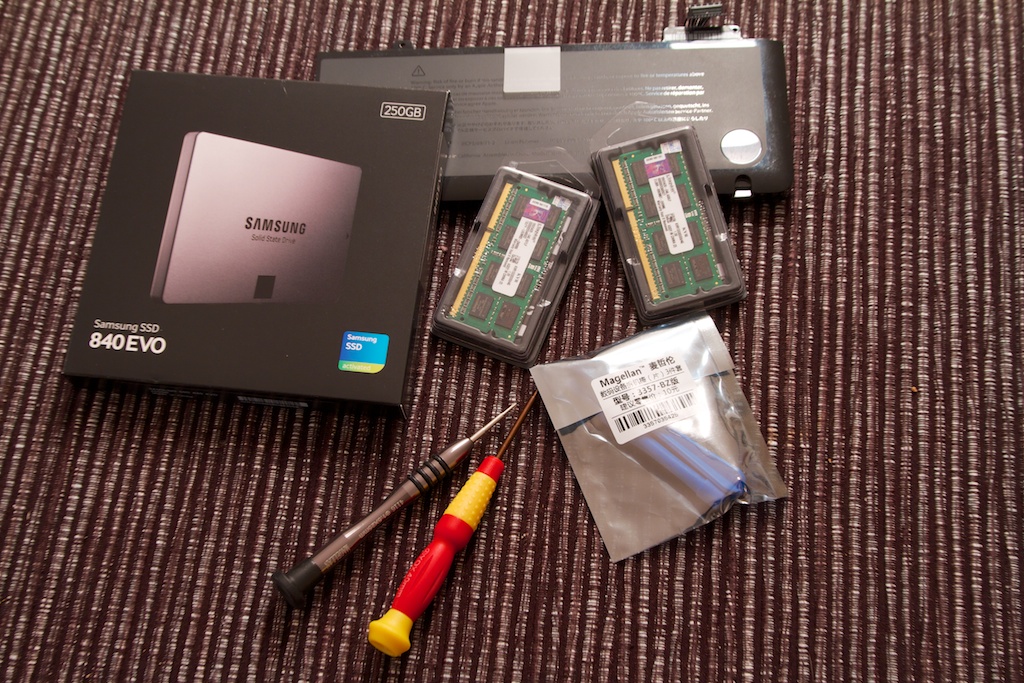
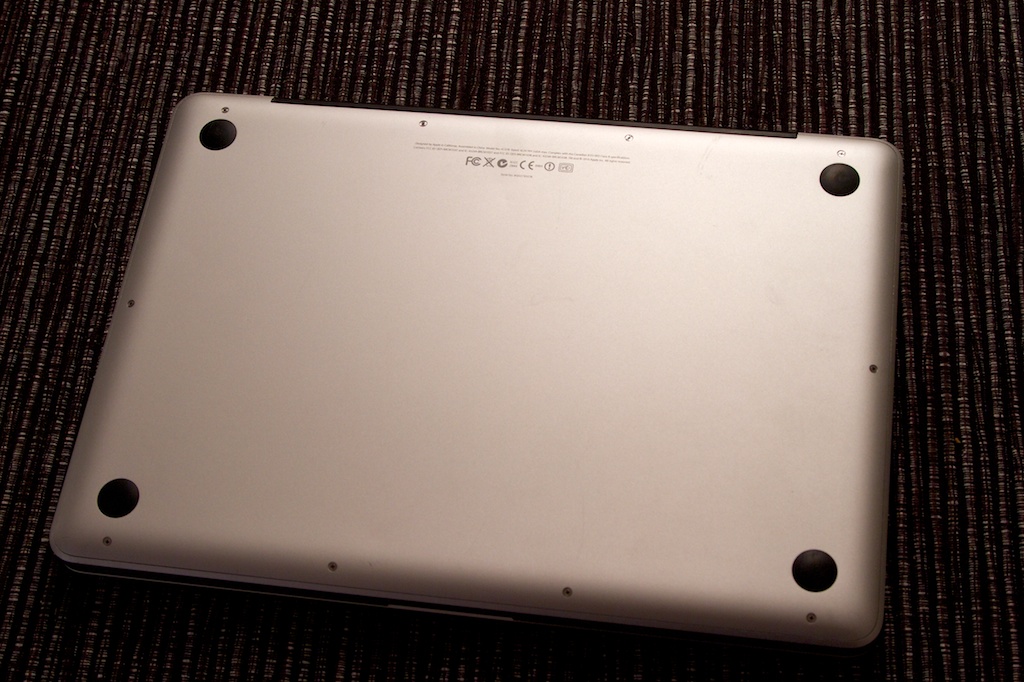
I removed the ten small screws, taking care not to lose them.
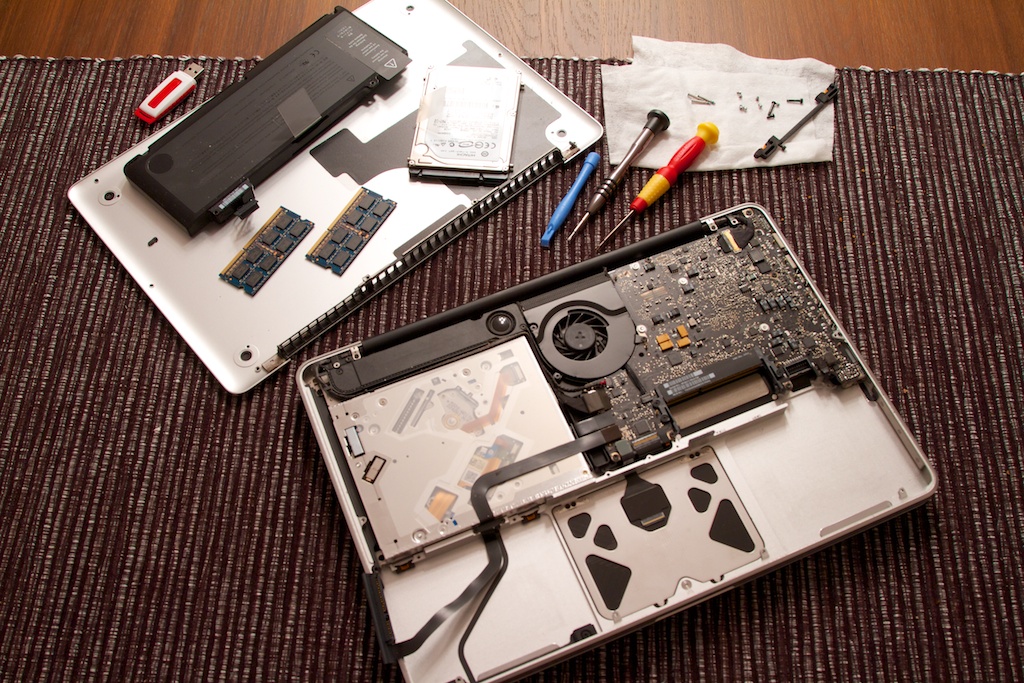
I removed the battery first, then the memory and finally the hard disk. The process was straightforward and went without issues.
I installed the new components. For the hard disk, I needed to remove the original screws because the new SSD did not include them.
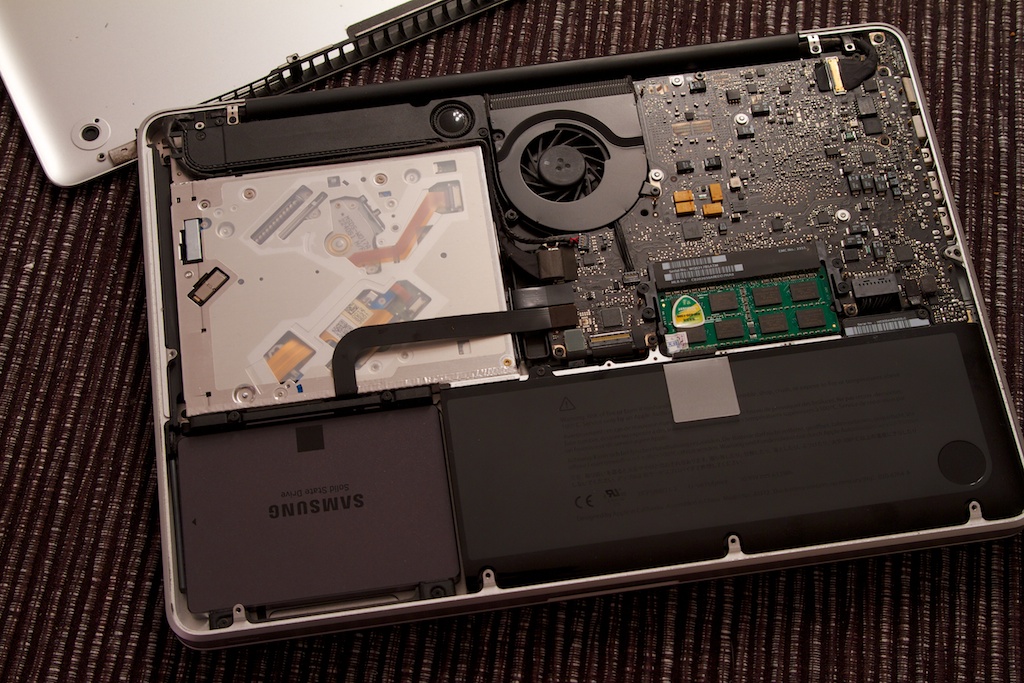
I replaced the lower case and started the MacBook.
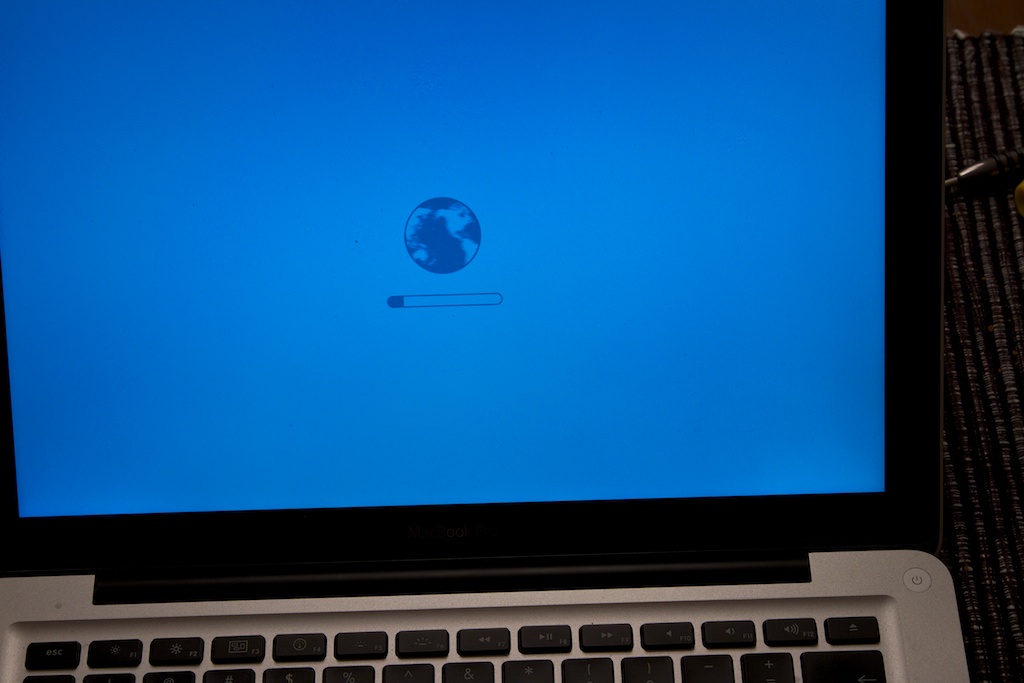
Troubleshoot OS X installation and memory
Everything went smoothly until OS X Recovery needed to start. I spent about 1.5–2 hours trying to load OS X, and Internet Recovery did not help.
The installation froze, so I tried an OS X Lion installation DVD. When the Mac froze again, I decided to remove the memory. When a PC or Mac freezes, 99% of the time it relates to bad memory or its configuration.
My MacBook did not accept the 8 GB configuration. I installed OS X Lion, upgraded to Mavericks and continued troubleshooting. The original 4 GB worked, but the MacBook froze when I installed the new 8 GB. A combination of one 2 GB module and one 4 GB module booted and showed 6 GB. I tried all the combinations, but this mid-2010 MacBook only accepted 6 GB. I still do not know why 8 GB was not accepted.
This was a week ago, and I am glad I made the upgrade. The SSD has improved performance and made the system feel like new.
I am now considering a 500 or 750 GB SSD for my 24-inch iMac. My advice for speeding up a computer is to install an SSD.