McAfee: Web Gateway for Hyper-V – Part 1
McAfee Web Gateway (MWG) protects against web threats such as viruses, other malware, inappropriate content and data leaks. Its main functions include:
- Intercepting and transmitting web traffic as a proxy server.
- Authenticating users against Windows Active Directory with NTLM or Kerberos.
- Filtering web objects by URL, malware, media type and web application.
- Reporting on the filtering process through McAfee Reporter of Content Security add-on with ePO.
I am working on a migration from VMware ESXi to Hyper-V on Windows Server 2012 R2. Web Gateway supports Hyper-V from version 7.6.0.1. When I tried version 7.5, the installer did not allow installation on Hyper-V, so the 7.6 release arrived in time for this project.
I am using PowerShell to create the VM and keep the installation, configuration and migration consistent. My goal is to complete the process within an hour and migrate the configuration through backup and restore, with as little manual input as possible.
Create the Web Gateway appliance
The script uses the following settings:
- Stores VHDX files on E:. Adjust the path for your storage location.
- Allocates 16 GB of memory, the minimum production requirement.
- Connects to the vSwitch trunk, renames the first network adapter and assigns the internal VLAN.
- Adds an eth1 adapter and assigns the Internet VLAN.
- Attaches the ISO and starts the VM.
Using the script will save at least five minutes and keep the appliance configuration consistent across Hyper-V hosts.
| |
Install Web Gateway
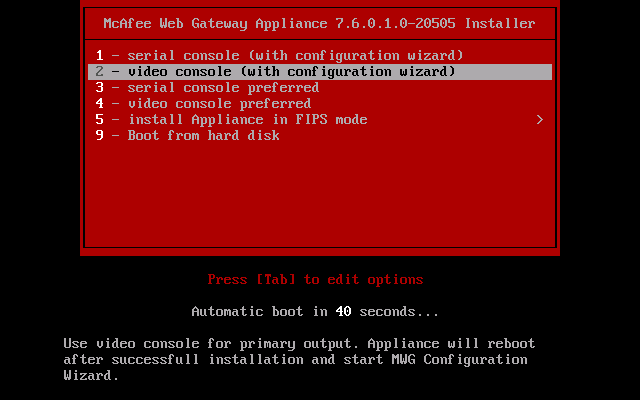
The VM boots from the ISO and starts the installation.
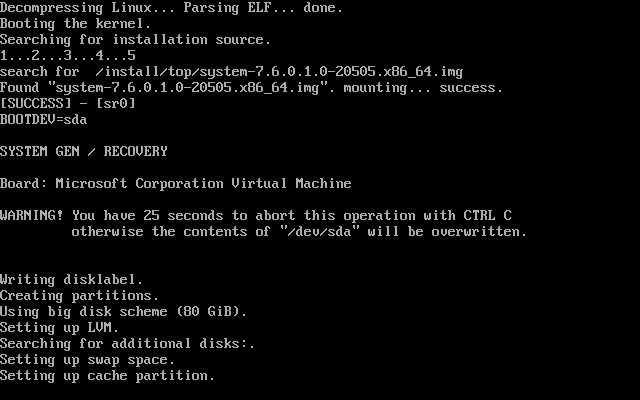
The installer partitions the virtual disk.
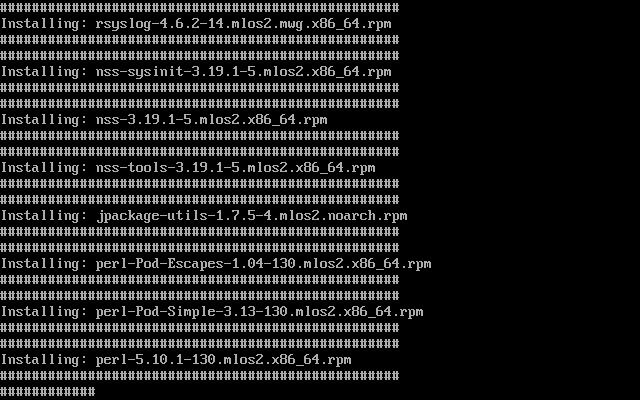
The Web Gateway packages are installed.
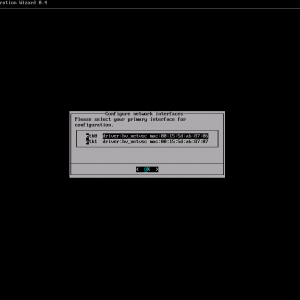
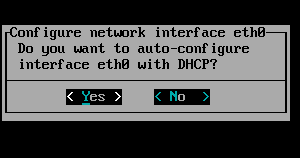
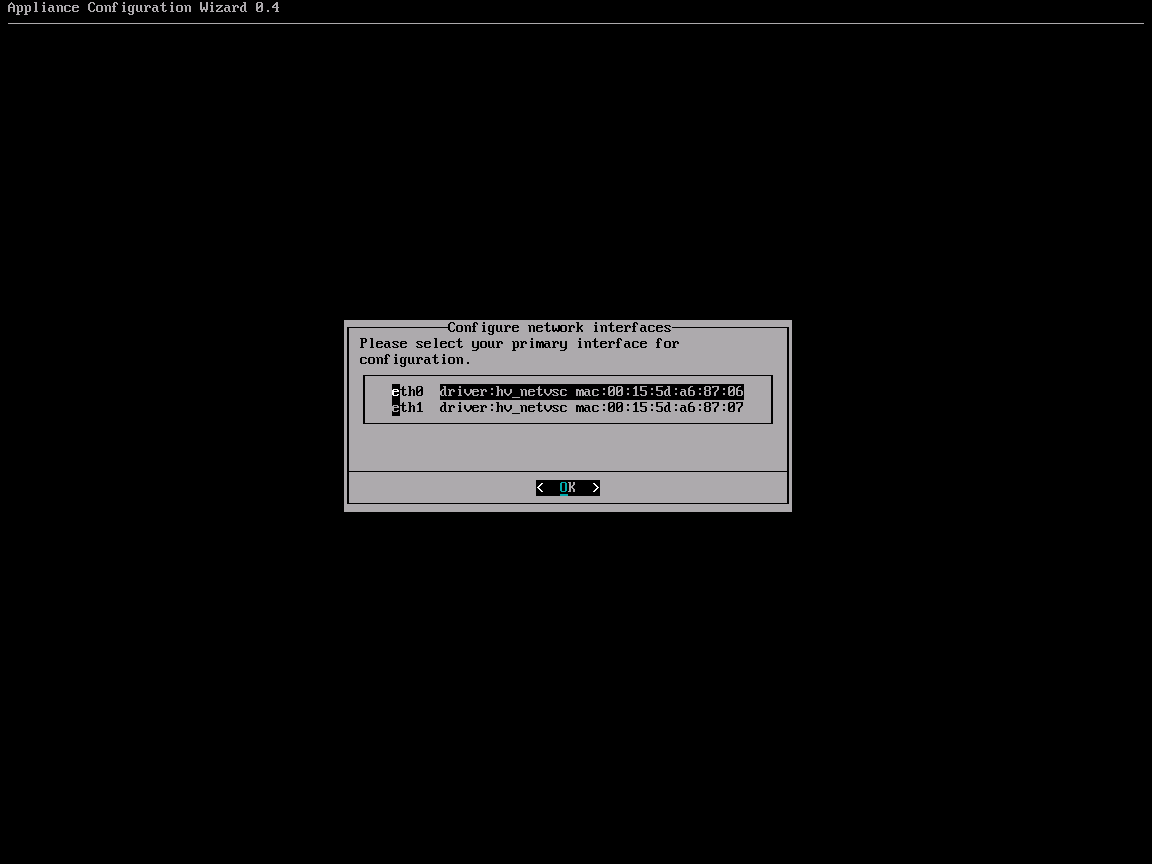
Select the primary network interface. I used eth0.
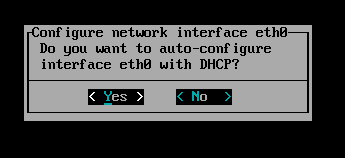
I selected Yes for DHCP because I planned to configure the network later.
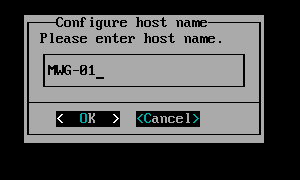
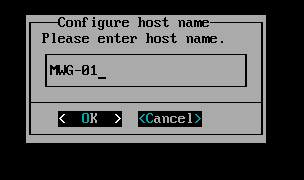
Enter the MWG hostname.
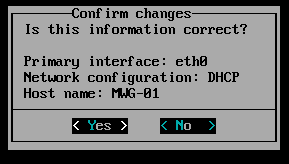
Confirm the initial changes with Yes.
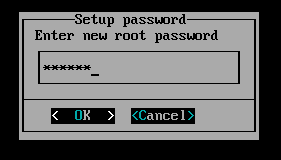
Enter the root password.
Enable remote login through SSH.

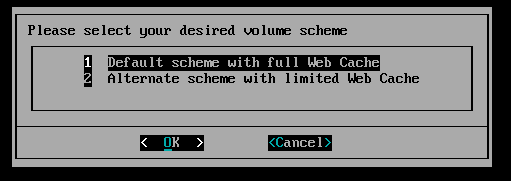
Select the volume scheme. I used Web Cache 1.
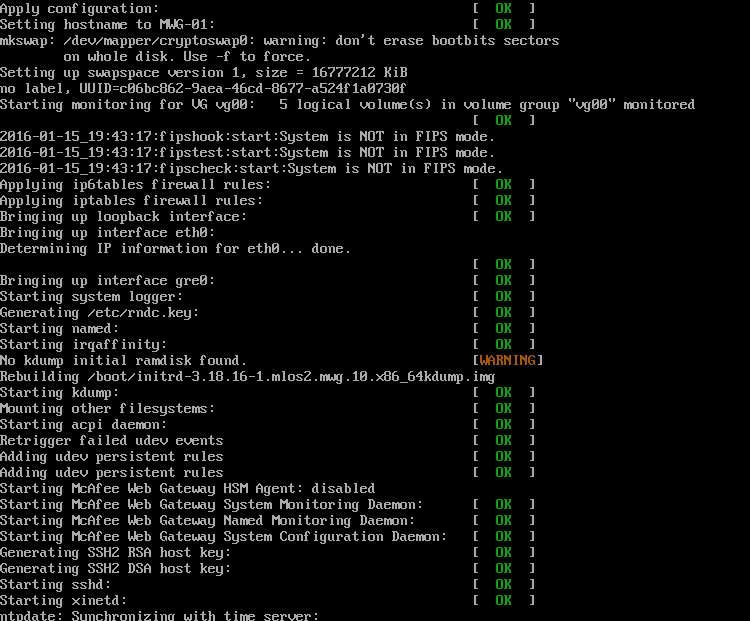
Web Gateway starts after installation.
Complete the initial web configuration
Find the appliance's IP address and open https://ip:4712 in a browser. Sign in with the username admin and password webgateway.
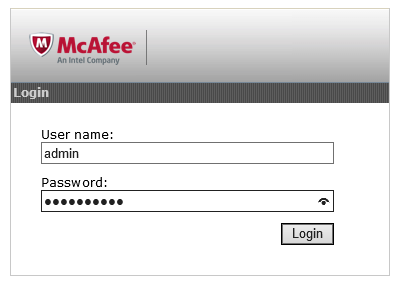
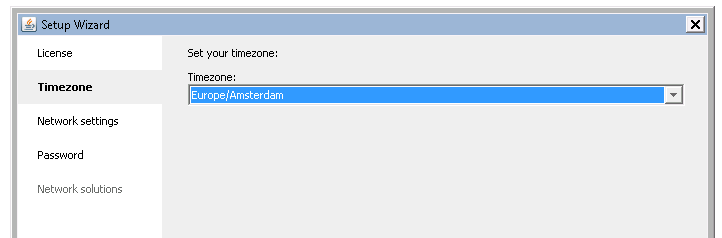
Accept the Java warning, select the license and set the time zone.
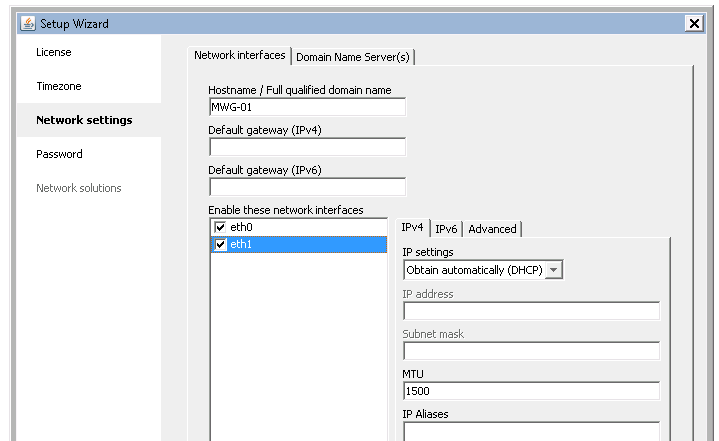
Configure the network settings. I enabled eth1 here.
Set the required new password.
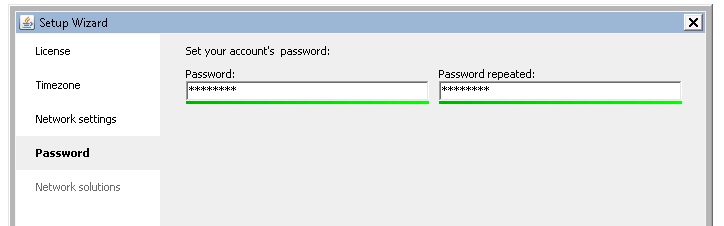
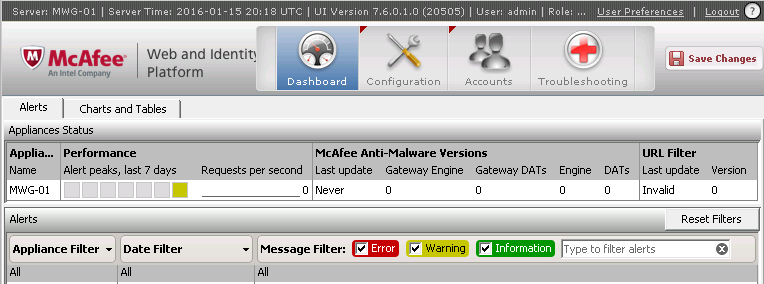
Finish the wizard. Web Gateway is installed on Hyper-V and ready for configuration.
References
For deployment through SCCM, continue with Part 2.
7 comments
Comments from the original WordPress site, kept read-only.
its very useful with screenshot.
could you please help me, how i can download the trial image of MWG. i already try with mcafee with sign up but no luck for get the image download link. if you have image could you please share with me in my email address. Tq
Hello Mukesh,
Thanks for visiting my site. I can't just provide you my own ISO file. You can go to https://www.mcafee.com/apps/downloads/free-evaluations/default.aspx?region=us&pid=aaac14140 and request the trial yourself once again, not sure if you used this location. Just fill out the form and wait for the email/link. Let me know how it went.
Regards, Ivan
pls send me your own iso.pls help me.
Hi there I can't provide you the iso file. You will need to apply for a product trail her https://www.mcafee.com/enterprise/en-us/downloads.html
Very good article Ivan! I Love to read that you like our product! :)
For the others, please make sure to regsiter for the official trial, as Ivan says. You will get access to the ISOs over that official channel.
thanks,
Michael
--
Lead Product Manager
McAfee Germany GmbH
Hi Michael,
Thanks for being on my blog and your reply. Still very happy and I looking forward to get the appliance in the Azure cloud. Need to check if this by now available for MWG.
For some reason we still dnt get any notification about ISO from mcafee,can someone help on this ?