Windows Time: check and configure NTP synchronization
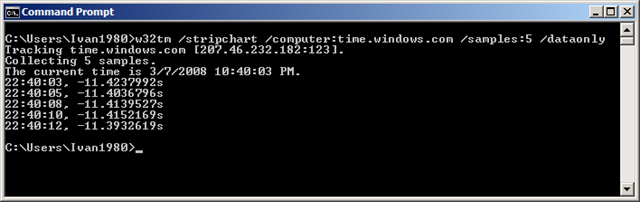
When I checked the time difference between my local system and the time.windows.com NTP server, I found an 11-second difference.
Open a command prompt and run the following command to check your local time service:
| |
I trust Microsoft to maintain its time infrastructure, but I still performed two additional checks against nist.gov servers:
| |
Configure the Windows Time service
I am now manually configuring the Windows Time service to synchronize the local time with Microsoft's NTP peer:
| |
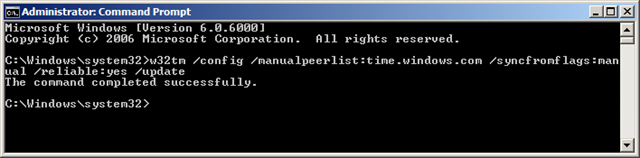
Three new events are generated in Windows Vista:
The time service is now synchronizing the system time with the time source time.windows.com (ntp.m|0x0|0.0.0.0:123->207.46.232.182:123).
The system time has changed to 3/7/2008 9:51:02 PM from 3/7/2008 9:51:13 PM. (My 11s ;-))
The system time has changed to 3/7/2008 9:51:02 PM from 3/7/2008 9:51:02 PM.
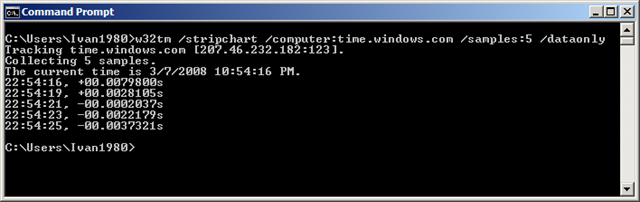
A final stripchart check shows an offset of 00.xxxx. Consider these steps for your Active Directory PDC domain controller and the time source for your domain. For more information, see this article.
2 comments
Comments from the original WordPress site, kept read-only.
Excellent info. Thanks!
Are you able to run w32tm /resync
I am having a hard time figuring out why I am not able to resync to my NTP server