Windows Server: Remove hotfix backups and the WSUS cache
This morning, my Cacti appliance warned me that a Windows system volume was more than 90% full. I had configured email notifications for this a while ago.
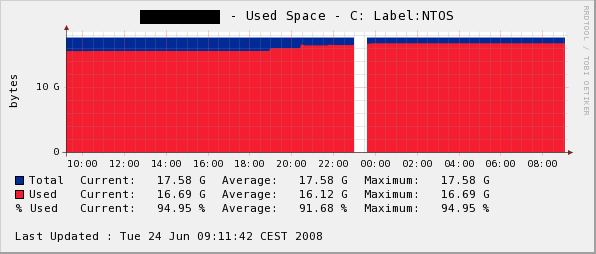
I had not planned the disk configuration when partitioning this server. It has 4GB of RAM, and the paging file is on C:\.
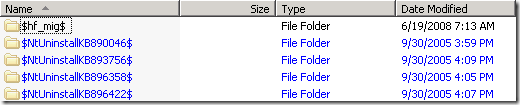
I could not move the paging file or the virtual machines to another volume. In C:\Windows, I found blue directories used by Automatic Updates that occupied more than 500MB.
Remove hotfix backups
To safely remove hotfix backup files and their Add/Remove Programs registry entries, download the hotfix backup removal tool. Run it and remove all hotfix backup files.
Then open c:\Windows and delete the blue directories. Their names start with $.
Clear the update download cache
Also check the size of C:\WINDOWS\SoftwareDistribution\Download. My folder occupied 600MB.
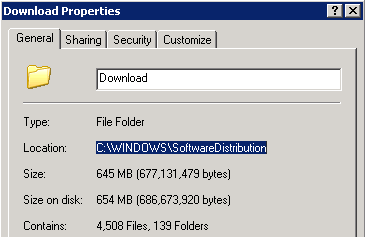
Stop the “Automatic Updates” service from the Services console, or run:
| |
Delete all subfolders from C:\WINDOWS\SoftwareDistribution\Download, then restart “Automatic Updates”. This procedure applies to Windows XP and Windows Server 2003.