VMware ESX: Extend a Windows Server 2008 basic volume
Last week, I encountered a problem with free disk space on my Windows Server 2003 VM. Today I encountered the same problem on another VM running Windows Server 2008. Its virtual disk was 10GB, with only 80MB free.
Windows Server 2008 improves support for extending basic disk volumes while the system is running. In my previous post, I had to attach the virtual disk to another server, assign a drive letter and run the extend option in diskpart.
Extend the volume
In the VI client, open the virtual machine’s properties and increase the “Hard Disk” to the planned size. Then open Computer Management / Storage / Disk Management, right-click and select Refresh.
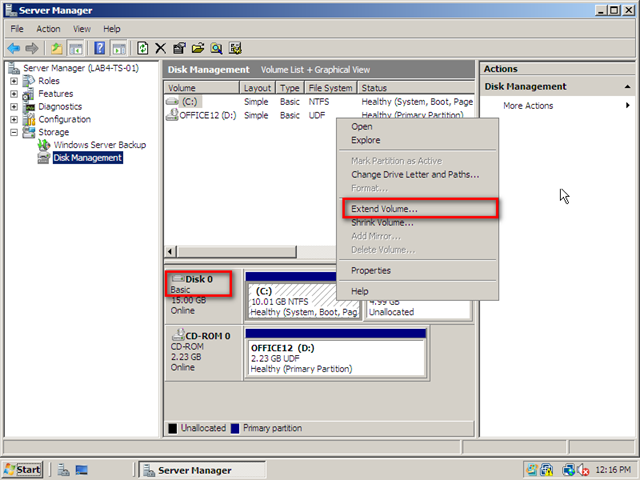
The additional space appears as “Unallocated”. Right-click the C:\ volume and choose “Extend Volume”. Follow the wizard, and the basic volume is extended within seconds. VMware ESX and Windows Server 2008 are making our work as system engineers easier.
The lesson: size your virtual environment appropriately, especially its hard disks.
Related link
1 comment
Comments from the original WordPress site, kept read-only.
When "Extend Volume..." option is greyed out, see http://www.extend-partition.com/extend-system-boot-partition.html to get method to activate it.