Windows Server 2008 R2: Select the edition in Autounattend.xml
Windows Setup can use an answer file for an unattended installation. Windows 2000 and Windows XP used winnt.sif; Windows Vista, Windows 7 and Windows Server 2008 can use Autounattend.xml. With Windows System Image Manager (SIM), you can add the components Setup needs to complete the installation without input.
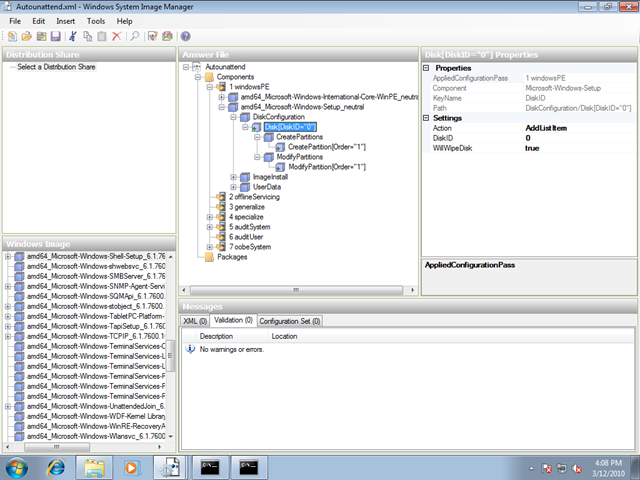
Select the Windows Server edition
I built an Autounattend.xml file, but Windows Setup still asked me which edition of Windows Server 2008 R2 to install. I wanted to skip that prompt and make the installation fully automatic. To do this, add InstallFrom to the XML file.
| |
Query the WIM file with imagex.exe /info d:\sources\install.wim and use the image name in the MetaData Value field.
3 comments
Comments from the original WordPress site, kept read-only.
Hi. I just wanted to say thanks for this. I first tried entering it manually but it didn't work. I then tried entering it through WAIK but I couldn't quite find it. So for everyone else, you need to expand/Add *_Microsoft-Windows-Setup_neutral > ImageInstall > OSImage > InstallFrom > MetaData
Set the action to AddListItem
Set the Key to /IMAGE/NAME
Set the Value to the name as explained in the article.
I hope that helps someone.
Hi, wanted to thank for this site :D helped me a lot I have had got same issue and it got me half way...only problem I have now is when I put product key xxxxx-xxxxx-xxxxx-xxxxx... for Enterprise edition its accepting it in WSIM but later its telling me when installing that product key is invalid(I have removed the object containing product code in Win SIM and it installed fine unattended but later on after its installed have to put it but... thats not that big deal after all)
another way of checking what versions of win 2008 u have in ur image is to add image to Windows deployment services and after u can check in image detail name of all images in this one DVD image ;)
I gues using imagex is quicker but more chaotic way of doing it...