PowerShell: delete files older than x days
In the following example I will demonstrate how to use Windows PowerShell to delete files based on days. Windows PowerShell is a new Windows command-line shell designed for a scripting environment. With Windows 7 and Windows Server 2008 R2, PowerShell is installed out off the box now.
Windows PowerShell has an interactive prompt and can be used in combination with scripts. I use "Windows PowerShell ISE" application to generate the script (PS1 extension). Notepad or any other text editor can be used as long the PS1 extension is used.
The following procedure requires that Executions Policy for the interactive PowerShell console is set to RemoteSigned. Please check the policy before starting with script.
Step 1 - Check the ExecutionPolicy for PowerShell
| |
If the output results in "Restricted" make sure the execute the following step.
Step 2 - Set ExecutionPolicy to RemoteSigned
| |
Check again the the ExecutionPolicy and please make sure it stated "RemoteSigned".
How to delete files older than X days?
Windows PowerShell is built on top of the .NET Framework common language runtime (CLR) and the .NET Framework. By combining different cmdlets, PowerShell can help with executing complex tasks.
In the following example I will use couple of built-in commands to search for files older than defined days and delete the files. This script can be useful for cleaning up some log files on a web server or deleting obsolete files.
Script logic
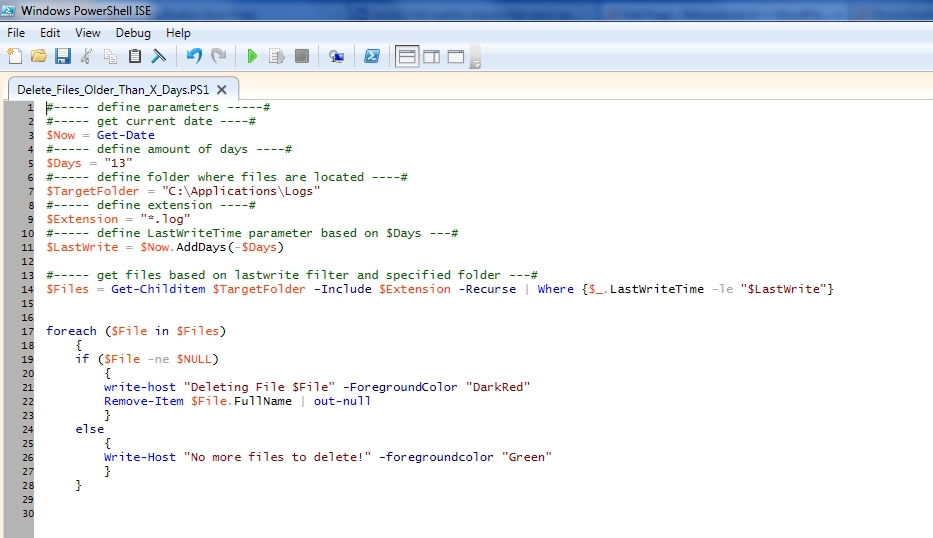
Define the parameters. For my example I am using C:\Applications\Logs folder where I want to delete files which are older than 7 days. I am also defining the LOG extension filter.
| |
Get all files from the $TargetFolder and apply the $LastWrite filter
| |
For each file in $TargetFolder folder, run a foreach loop and delete the file.
| |
Create new file and name it Delete_Files_Older_Than_X_Days.PS1
I used Windows PowerShell ISE to create and test the new file. Make sure to define your parameter like days, folder and extension. For extension use * to include all files. Before assigning the script to a group policy, logon script or other distribution methods please make sure it works for you!
| |
How to run the new script from Command Prompt or PowerShell console?
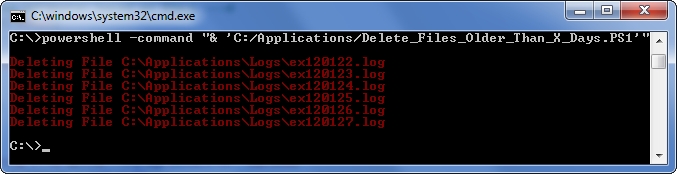
From Command Prompt run the powershell command with with path and file name of the script.
| |
From PowerShell console go to the folder and run the script. For example:
| |

Make sure to test your modified version of this script. This PowerShell script works fine with my Windows environment based on Windows Server 2003 and Windows 7. I hope this post will help you finding your solution on the problem you want to solve. PowerShell options are endless.
References
49 comments
Comments from the original WordPress site, kept read-only.
8 mentions
- Networknet.nl » Server management: Symantec LiveUpdate
- Remove files and folders older than x days on windows
- [SCRIPT] Delete files older that 2 days with some exceptions
- Anonymous
- uweziegenhagen.de » Blog Archive » Dateien suchen per Powershell
- Delete files older that 2 days with some exceptions - Just just easy answers
- Cleverer Powershell | Halo's Protest
- Deleteing old logs in powershell – My Feelings are Significant
This didn't really work too well for me unless I used the FullName property of the $File object, and used a -recurse option on the Remove-Item cmdlet, like so:
foreach ($File in $Files) {
Remove-Item $File.FullName -recurse
}
These were problems for me because:
a) the working directory for my script was c:\bin, but my target directory was c:\tmp. So what was happening was I'd get an error on each call to Remove-Item, saying that c:\bin\ did not exist. The $File.FullName fixed that problem, FullName contains the full path to the file to be deleted.
b) Without the -recurse option on Remove-Item, you get a prompt asking you if you're sure you want to remove the directory (if the target is a directory). This is a larger problem in that the parent folder may have an older modify date than it's children folder, and unfortunately this script will simply delete the parent and all sub-children blindly, even if a new file is located in a sub-child directory. Not good in general cases but for my c:\tmp dir I can live with it.
Worked great! Thanks!
Worked perfectly as described, thanks very much!
Typical, 'here is an untested script that I cooked up without seeing it if worked' post.
Thanks Tim. You understand that testing/debug is 90% of scripting.
get-childitem | where -FilterScript {$_.LastWriteTime -le [System.DateTime]::Now.AddDays(-7)} | remove-item
@Chris King:
Typical, "here is a post where I criticize the article without having actually read it."
Had you bothered to read it, you'd have noticed that this script is intended to do exactly one thing, and that is remove old Symantec antivirus definitions.
Here are the subtle clues which allowed me to figure this out:
1. The file mask specifies .zip and .def files
2. The target folder includes a Symantec path
3. The fact that he titles the script "RemoveScriptSymantec.ps1"
4. The fact that he SPECIFICALLY DESCRIBED EXACTLY WHAT IT IS FOR IN THE VERY FIRST PARAGRAPH.
Thank you.
I just added a condition to check that the file is not null.
foreach ($File in $Files) {
#Check for null
if ($file -ne $NULL){
#write-host "Deleting Transaction LOG: $File" -foregroundcolor "Red";
Remove-Item $File | out-null
}
}
$Now = Get-Date
$Days = “9”
$TargetFolder = “\\svrmdectx12\USERS”
$LastWrite = $Now.AddDays(-$days)
$Files = get-childitem $TargetFolder | Where {$_.LastWriteTime -le
“$LastWrite”} | sort-object LastWriteTime
$Files
""
$Files.count
""
foreach ($File in $Files)
{
$file12 = $file.name
If ($file12 -ne $null)
{
write-host “Deleting File $file12” -foregroundcolor “Red”;
#Remove-Item $TargetFolder\$File -recurse -force | out-
null
}
Else
{
""
Write-host " No more file to delete "
""
}
}
Great stuff! Thank you
@weaselspleen
Your right, I must have been is some mood that day. My only excuse is that there IS a lot of untested scripts floating around in posts.
This is obviously not one of them.
Sorry, Ivan.
Dear all,
Thanks for your replies and comments. Information posted on my blog is provided AS IS. The script worked fine within my environment. I have modified this post which was almost three years old and made it more general then before. The initial script is still running on my Windows 2003 VM and deleting the files.
So thanks for the feedback. Maintaining such kind of blogs requires energy and time but seeing all of you here I am happy to do that.
With kind regards,
Ivan
Why do you test if a file is $Null? Why would Get-Childitem return a $null file? This makes no sense to me.
Guys,
This will not work for remote computers. Admins need to manage multiple computers. Below is the script that can be used to delete folders in multiple remote computers without having tio login to them.
Below script will delete folders older than 15 days. you can change the $days parameter though
D$\Program Files (x86)\Research In Motion\BlackBerry Enterprise Server\Logs is the UNC path for Blackberry Log folder. You can change the directory where your logs/folders are located.
list all your servername is servers.txt file and it should located in the same directory as this script.
#============Begin of the Script=======================
cd C:\Scripts\Powershellscripts\deletefiles ----> change it to the directory you wanna out this script to
$Days = "15"
$Now = Get-Date
$LastWrite = $Now.AddDays(-$days)
$server = get-content servers.txt
foreach ($node in $server)
{
get-childitem -recurse "\\$node\D$\Program Files (x86)\Research In Motion\BlackBerry Enterprise Server\Logs" | Where-Object {$_.LastWriteTime -le $LastWrite} | remove-item -recurse -force
}
#========End of the Script=================
save the script as .ps1 and run it... You can schedule it via batch file... That why you need to add Change Directory command at the beginning of the script..
Have fun..
@Chris King @Weaselspleen
You could also run the script with the -whatif flag to first see what would happen. I personally tested it by creating a simple directory structure and some blank files on my local computer before moving into production but -whatif does a treat for testing things like this.
@Ivan
While it may be >3 years old it's still the top hit on a Google search for "delete files after x days powershell". It even beats out Microsoft's own Scripting Guy whose own post is >5 years old. Congrats on having such a popular post!
Hi,
I need to clear out directories that contains 500k+ files in them...
By using get-childitem -recurse it really takes its time.... (Stopped it after two hours...)
With nothing deleted...
Are there any faster ways?
Now is there a way to change it to move the files to the Recycling bin instead of permanately deleting them?
First off, Ivan thank you for a great and simple post. Worked for me perfectly.
@VJ, not sure what you're talking about. I just used this script against a remote system (using UNC path) and managed to delete over 700GB of old transaction log backup files without an issue.
I need to list the File Size in both email and Host listing. Any Help here?
@Wandrag - I had the same issue (Jorge... you likely have large files, but not that many of them... that is a key difference). The problem is that Get-ChildItem returns a full object for each file that you are enumerating in the folder. Thus, with 500k, you are requesting a lot of information.
The solution is to NOT use Get-ChildItem and use [io.directoryinfo]
Try this: (NOTE: AS IS and scrapped together from a known working script of mine... the idea is valid if it doesn't work :) )
######## COPY START ########
$SrcFolder = "\\your.path\to\lots\of\files\" #can be any type of directory
$Fileage = -14 #Number of days you want to RETAIN (ie it will delete files older than this many days)
#set up directory info
[io.directoryinfo]$dir = $SrcFolder
#Get the files that are older than your $fileage
$FileCol = ($dir.GetFiles() | Where {$_.LastWriteTime -lt (Get-Date).AddDays($Fileage)})
#If your source folder may contain subfolders use:
#Where {!$_.PSIsContainer -and $_.LastWriteTime -lt (Get-Date).AddDays($Fileage)})
#if you want a progress bar (when running interactively) uncomment the following two lines
#$i=1
#$Files2Remove = $FileCol.Count
#Get your files
Foreach($File in $FileCol)
{
#if you want a progress bar uncomment the following line
#Write-Progress -Activity "Removing files older than $([system.Math]::Abs($Fileage)) days" -id 1 -status ("Files Processed $i of "+$Files2Remove.ToString()) -percentComplete ($i / $Files2Remove*100)
if(test-path $File.FullName)
{
remove-item -path $File.FullName -Force -WhatIf #Comment the -Whatif to actually remove the files
}
#if you want a progress bar uncomment the following line
#$i++
}
######## COPY END ########
Hope that works better for you... with 500k files nothing is going to be all that speedy.
If you'd like a quick comparison test (between gci and io.directoryinfo) run these to get your file count:
[io.directoryinfo]$dir = $SrcFolder
measure-command {$dir.getFiles()).count}
Measure-command {(Get-ChildItem $SrcFolder).Count} #you may have to kill this one after a while, but you should get the idea that it is slower. :)
PS - I missed the -recurse part (I'm lucky and have no subfolders :))...
$dir.getdirectories() will give you the directories in the $srcFolder. You can use that collection to loop through and create new directoryinfo to getfiles() with, but it really depends on how deep your directories go... you might need to build a recursive loop when the $currentFolder.getDirectories().count -gt 0 or something... Not sure that any of these take -recurse or if it can be worked in somewhere (to make things simple), but I haven't looked into it... Let us know what you find ;)
PPS - There is a typo in my quick comparison test (grabbed an extra ')' on my copy and paste)... change:
measure-command {$dir.getFiles()).count}
to
measure-command {$dir.getFiles().count}
This is great. thanks. I modified it for my own purposes, of course. Love the suggestion about the -whatif flag.
Hi,
Thanks for taking the time to share this with us. How would I modify this script to hit a bunch of computers. I need to delete old internet shortcuts from the all users desktop that are older than 6 months. I have text files with all PC names, and scripts that I usually use to copy files, but I can't seem to figure out how to do modify to delete files with this script.
Cheers
Ian
Thanks this was a great help.
I was also wondering, since I am new to PS, does anybody have idea as to how to move files from a dynamically retrieved folder list to a list of correpsonding folders on a network location.
How about modifying it to keep only the most recent 10 files, but not delete any files in subdirectories?
@Rob,
not being an expert, but when the @SKYE's script runs, it returns a collection. That collection could be sorted, then sliced to return all the "other" files. You'd have to check the range and then slice it accordingly. You would then erase the files you in the modified/sliced collection.
for a very gross example:
[io.directoryinfo]$x="c:\"
$xn=$x.GetFiles()
$xn_sorted = $xn | Sort-Object -property LastWriteTime -Descending
#To select items 5 through end of the list
$xn_sorted[4..$xn_sorted.Length]
I hope this helps
Here is a oneliner that does the same thing:
http://www.pohui.eu/2012/10/delete-files-and-folders-older-than-90.html
thanks a lot guyz..
works fine
Hi All !
This is a really handy script. What I am looking for is a slight variation I believe. I have a number of folders all of which contain files. I need to check the folder and each file in the folder for the LastWriteTime. If the file is older than 14 days then move that file to an archive folder with the same folder structure. I then need to loop through the remaining folders. I currently have a script this script.
#Powershell Script to delete files older than a certain age
foreach($File in $Folders)
{
#age of files in days
$intFileAge = 14
#path to clean up
$strFilePath = "F:\Scripts\Paygate"
#Set the destination of where the files move to
$PathToGo = "F:\Scripts\Paygate\Archive"
#create filter to exclude folders and files newer than specified age
Filter Select-FileAge {
param($days)
If ($_.PSisContainer) {}
# Exclude folders from result set
ElseIf ($_.LastWriteTime -lt (Get-Date).AddDays($days * -1))
{$_}
}
$a = get-Childitem -recurse $strFilePath | Select-FileAge $intFileAge 'CreationTime'
foreach($b in $a)
{
##move-item $b.fullname $PathToGo
Echo "Moving $b to $PathToGo"
}
}
Any help would be great
Many Thanks
This worked perfectly thank you!!
Hi I need small help i liked your script but i need to exclude some folders and files under it how can i do that i tried like below but its not working
------------------
$Now = Get-Date
$Days = "7"
$TargetFolder = "C:\amit"
$Extension = "*.txt"
$LastWrite = $Now.AddDays(-$Days)
$Fldrexclude = "webserver" # Want to exclude this folder and files in it
$Files = Get-Childitem $TargetFolder -Include $Extension -Recurse |
Where {$_.LastWriteTime -le "$LastWrite"}
Where {$_.name -ne $Fldrexclude}
foreach ($File in $Files)
{
if ($File -ne $NULL)
{
write-host "Deleting File $File" -ForegroundColor "Yellow"
Remove-Item $File.FullName | out-null
}
else
{
Write-Host "No more files to delete!" -foregroundcolor "Green"
}
}
pls help
This worked well for my requirements! Thank you!
hi All,
function new-zipfile {
param ($zipfile)
if (!$zipfile.endswith('.zip')) {$zipfile += '.zip'}
set-content $zipfile ("PK" + [char]5 + [char]6 + ("$([char]0)" * 18))
(dir $zipfile).IsReadOnly = $false
}
#define variables here
$thismonthint = get-date -f "MM"
$prevmonthint = (get-date).addmonths(-1).tostring("MM")
$thismonthstr = get-date -f "MMM"
$prevmonthstr = (get-date).addmonths(-1).tostring("MMM")
$thisyearlongint = get-date -f "yyyy"
$thisyearshortint = get-date -f "yy"
$thislogdir = 'C:\rad\'
$thiszipfile = $thislogdir + $prevmonthstr + $thisyearlongint + '.zip'
$zipexists = test-path $thiszipfile
$Days = "30"
$Now = Get-Date
$Extension = "*.log"
$LastWrite = $Now.AddDays(-$Days)
#$files = dir $thislogdir -Recurse -Include $mask | where {($_.LastWriteTime -lt (Get-Date).AddDays(-$days).AddHours(-$hours).AddMinutes(-$mins))
#start program here
#first pass, check for .zip files of previous months. if exists exit. if not exist, create empty .zip file
if (! $zipexists)
{
echo 'zip file does not exist, creating zip file'
new-zipfile $thiszipfile
}
else
{
echo 'zip already exists'
}
# move all log files where the month number matches the month number of the .zip file
# Jan = 01, Feb = 02, Mar =03 etc. etc.
$file=0;
foreach($file in Get-ChildItem $thislogdir -Include $Extension -Recurse | Where {$_.LastWriteTime -le "$LastWrite"})
{
# exclude the .zip files already in the directory (just in case we get a random month match in their filename
if (! $file.name.endswith(".zip"))
{
$zipfile = New-Object -ComObject shell.application
$zipPackage = $zipfile.NameSpace($thiszipfile)
#$zipPackage = $ZipFile.NameSpace($zipfilename)
$zipPackage.MoveHere($file.fullname)
}
}
with this script i am not able to compress the log files with mentioned date. Please help
Yes , Really helped for me also....Good Work :)
Magnificent beat ! I would like to apprentice while
you amend your site, how can i subscribe for a
blog website? The account aided me a appropriate deal.
I had been a little bit familiar of this your broadcast offered vivid transparent idea
This works great for me !
Is there a way we can add multiple paths to the same script ? Please advise.
Thanks.
Guys ,
Need a help am trying to create a powershell script that can pick files from last 25hrs and zip it
Pelase do help
#----- define parameters -----#
#----- get current date ----#
$Now = Get-Date
#----- define amount of days ----#
$Days = "1"
#----- define folder where files are located ----#
$TargetFolder = "C:\folder2"
$destination = "C:\folder3\FSO_Backup.zip"
#----- define extension ----#
$Extension = "*.dll"
#----- define LastWriteTime parameter based on $Days ---#
$LastWrite = $Now.AddDays(-$Days)
$Files = Get-Childitem $TargetFolder -Include $Extension -Recurse | Where {$_.LastWriteTime -le "$LastWrite"}
foreach ($File in $Files)
{
if ($File -ne $Files)
{
write-host "Deleting File $File" -ForegroundColor "DarkRed"
Add-Type -assembly "system.io.compression.filesystem"
}
else
{
Write-Host "No more files to delete!" -foregroundcolor "Green"
}
}
I ahve tried long tool path. it works 100%
Hello, what would be the script if it's transfer files and not delete files?
Hey Ren,
Use robocopy (CMD) for transfer files
> robocopy.exe \\source \\destination /move /copyall
Hello,
How can this be modified to run each day at a certain time?
Thanks so much.
Mike
I have modified the script for it to be able to run under 2012R2 (Powershell 4.0) and send out e-mail messages. Just schedule a task through Task Scheduler to run on a daily basis.
Program/Script: %SystemRoot%\system32\WindowsPowerShell\v1.0\powershell.exe
Argument: C:\path\to\script\removeoldfiles.ps1
Script contents:
#----- define parameters -----#
#----- get current date ----#
$Now = Get-Date
#----- define amount of days ----#
$Days = "7"
#----- define folder where files are located ----#
$TargetFolder = "D:\PATH\TO\FILES"
#----- define extension ----#
$Extension = "*.sql"
#----- define LastWriteTime parameter based on $Days ---#
$LastWrite = $Now.AddDays(-$Days)
#----- get files based on lastwrite filter and specified folder ---#
$Files = Get-Childitem $TargetFolder -Include $Extension -Recurse | Where {$_.LastWriteTime -le "$LastWrite"}
#----- E-mail parameters
$Messageparameters = @{
Subject = "SUBJECT HERE"
From = "[e-mail removed]"
To = "[e-mail removed]"
SmtpServer = "SMTP.SERVER.ADDRESS.HERE"
}
if ($Files -ne $NULL)
{
foreach ($File in $Files) {
write-host "Removing file $File" -ForegroundColor "DarkRed"
Remove-Item $File.FullName
$Files2 = $Files | Out-String
}
}
else
{
Write-Host "No (more) Files to remove!" -foregroundcolor "Green"
$Files2 = "No files have been removed today!" | Out-String
}
Send-MailMessage @messageParameters -Body $Files2
Ofcourse this could be done in a nicer way, but it works.
I don't know enough PowerShell to know if I can make a minor adjustment but still have a functional script. I need to delete files (not directories) using a "today - x# of days" AND if all files in a directory meet the delete criteria, I need to be able to leave the newest file in place.
The above looks to handle the delete function to suite my needs. How can I adapt this script to leave the newest file intact?
Appreciate your time and efforts. Thank you!
Terry
Kevin, I'm using your modified script, Can you tell me, How can I to create log file of procedure? Please tell me your script with it.
Thank you
How would you make it recursive where it deletes the files in the subdirectories but not the subdirectories themselves?
Also, can you do several different filetype extensions?
Thank You,
David
What is the process of converting the script to a service?
How can I delete a line from a file into powershell? if i have one line like 07-JUN-2018,
how could i delete only content of the file.
I tried with remove-item, it removes all file not the content.
Thanks in advance
Hi
Let's say I wanna exclude 1 single file from deletion where can I add it
How we can use for remote server?