Windows Live Writer 2011: Why I use it for blogging
Today I reinstalled Windows Live Writer 2011. The installation took longer than expected. I then opened the application from the Windows Live menu. Its interface has changed since I last used it one or two years ago, and it now has the Office ribbon, which I like.
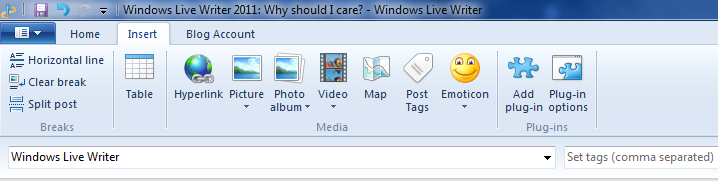
Windows Live Writer also handles an issue I had when editing posts in the WordPress admin pages. It includes <p> tags without any additional configuration. In the WordPress Visual Editor, I needed a plugin to allow these HTML paragraph tags. They are important for the paragraph styling in my WordPress theme.
Features I find useful
- Manage blogs on SharePoint Server, WordPress, Blogger or TypePad in one application. You can write offline and publish when you are online. Having all my sites in one application is handy.
- Add pictures by copying and pasting, just as in other Office applications. Take a screenshot with the Windows 7 Snipping Tool and paste it directly into a page or post. Picture size, style and other settings are only a few clicks away.
- When you select text to create a hyperlink, the application fills in the link from the clipboard. This saves time.
I often encounter issues while working and want to write about them. Having Windows Live Writer one click away is ideal for me: I can write without opening my site in the browser.
One disadvantage is that Windows Live Writer is installed locally on my managed Windows 7 client. At work, we use Microsoft Application Virtualization (App-V). Sequencing Windows Live Writer 2011 is possible, and I plan to do that soon.