BitNami: CMS Made Simple walkthrough

Several years ago, I tried to create a virtual appliance with Ubuntu Server and CMS Made Simple, but I never finished the project. BitNami now provides installers and virtual machines for CMS Made Simple, so I wanted to try its VM.
BitNami CMS Made Simple Stack provides a one-click install solution for CMS Made Simple. Download installers and virtual machines or run your own CMS Made Simple server in the cloud.
CMS Made Simple provides a fast and easy way to create a web site and manage its contents. It can be used by everyone from large corporate IT departments to home users..
Download and start the appliance
I opened the BitNami CMS Made Simple page and downloaded the VMware virtual machine.

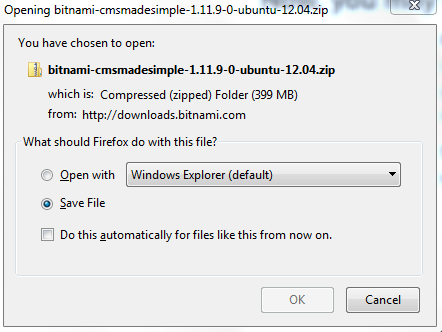
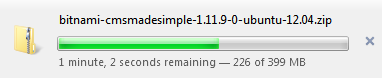
The 399 MB ZIP file downloaded quickly over my cable Internet connection.
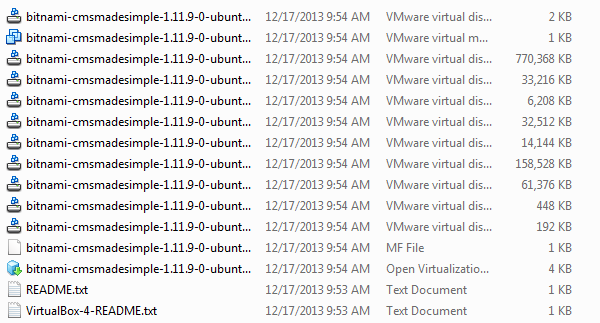
I extracted the file and opened the VM in VMware Workstation. The unpacked image was 1.02 GB.
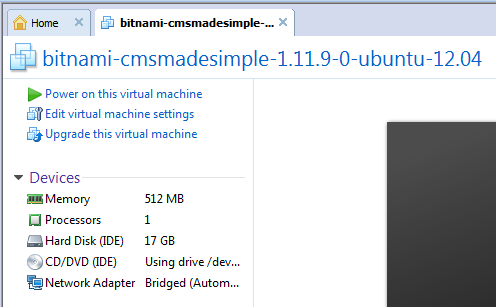
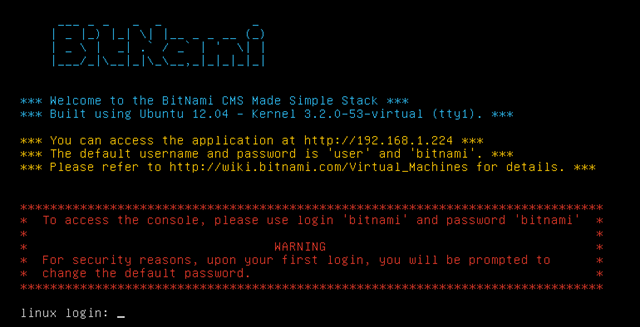
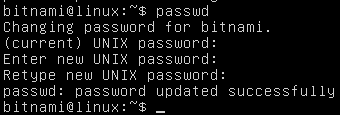
After finding the local IP address, I changed the password with passwd.
Services for HTTP, HTTPS, FTP and MySQL were running.

I opened the VM's IP address in Firefox and reached its information page.
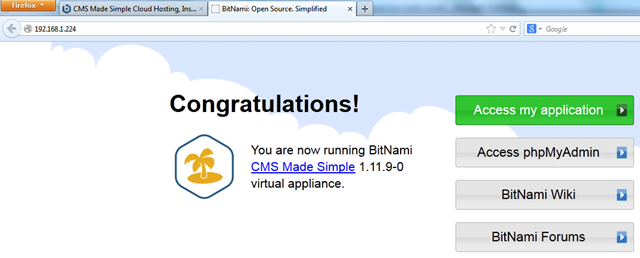
The "Access my application" link opened the preinstalled CMS Made Simple site.
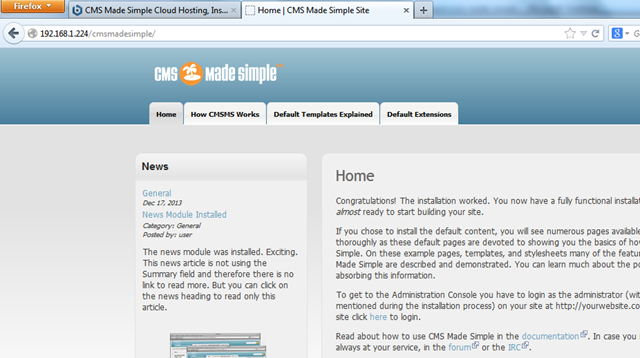
I like this approach to development. It lets me work locally and offline without repeating the manual installation for every project. I could start a VM for each project and later move the development work to the production website.
Enable SSH
I prefer an SSH session to the VMware console, but needed the BitNami virtual machine FAQ to find how to enable the service. This CMS Made Simple appliance uses Ubuntu Linux, and these were the required commands:
| |
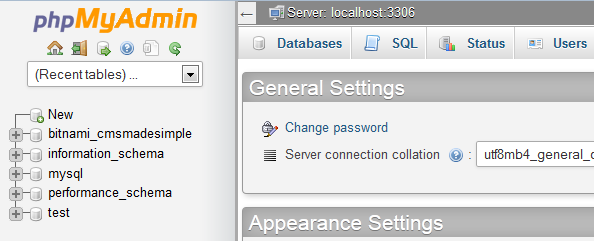
Enable phpMyAdmin
I could not find the documented file on the appliance. I needed to edit httpd-app.conf to get phpMyAdmin running:
| |
Restart Apache:
| |
The username and password are root/bitnami.
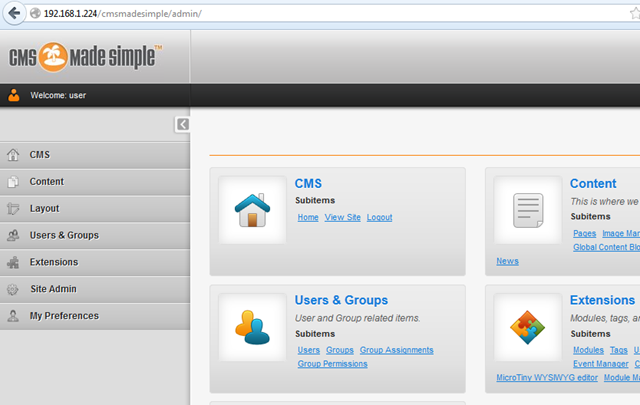
Open the CMS Made Simple admin area
The admin username is user and the password is bitnami.
For a new CMS Made Simple website, I can extract the VM image and start again. The VM could also be hosted on a server. This gives me a useful starting point for development. Thank you, BitNami!