Lync: Set up a SIP trunk with Avaya IP Office R9
Over the past 12 months, I have learned to set up and manage a Lync 2013 environment and completed a complex migration from OCS 2007 R1. This post starts a series about the challenges and what I have learned.
PSTN connectivity was one of my first goals after getting the Lync 2013 Standard Edition pool running. Last week, I established a SIP trunk between Avaya IP Office and Lync.
The most important prerequisite is the latest IP Office firmware. I am running R9 on an IP Office 500v2. I could not find a guide covering the whole SIP trunk setup, so I am documenting the configuration that worked for me.
My objectives
- Establish a direct SIP path without an additional proxy.
- Forward a PSTN extension to Lync so the conference bridge can be reached externally.
- Allow Lync users to dial the PSTN.
- Allow IP Office users to reach a Lync extension.
My environment
- Lync 2013 Standard Edition server running as a VM
- Lync 2013 Edge server running as a VM (not needed for the SIP trunk)
- Managed IP VPN network with classes of service for QoS
- No firewall between IP Office and the Lync front-end server
- Avaya IP Office 500v2 with R9 firmware
- SIP trunking license for 10 channels
- A Lync-enabled user with Enterprise Voice
Before starting, configure the Mediation Server to listen on TCP port 5060. I also had to adjust Windows Firewall because the port was not enabled by default.
Step 1: Configure IP Office
Firmware and licensing
My IP Office 500v2 runs firmware 9.0.3.16 build 2.

A SIP Trunk Channel license is required. I have ten channels.

Enable SIP trunks
Select SIP Trunks Enable in the system configuration.
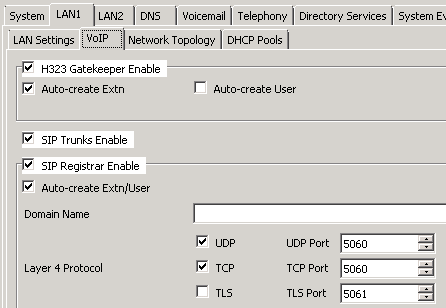
System / LAN1 / VoIP
SIP Trunks Enable: checked
Create a SIP line

I created SIP line 18.
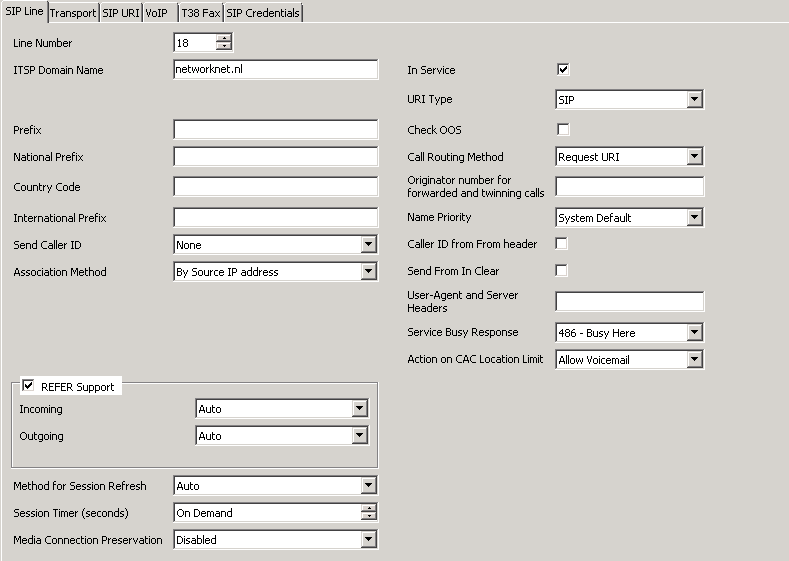
| |
Keep the other options at their defaults when creating the line.
Configure SIP transport
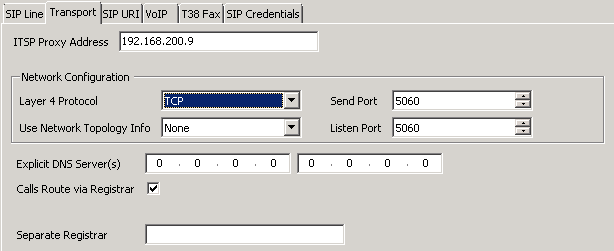
| |
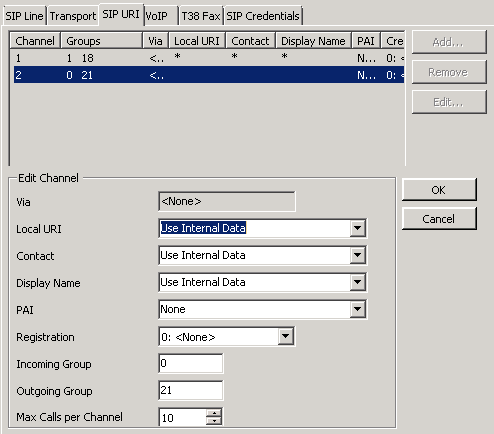
SIP URI: Channel 1
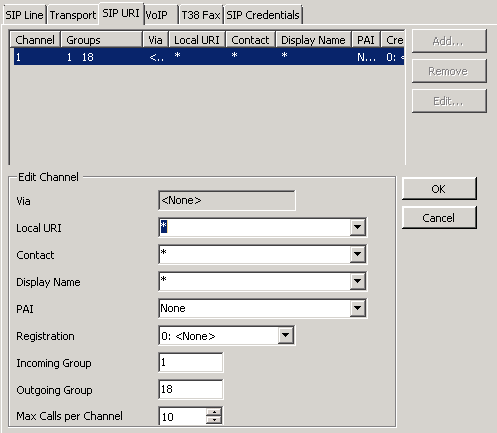
| |
SIP URI: Channel 2
| |
Select the VoIP codec
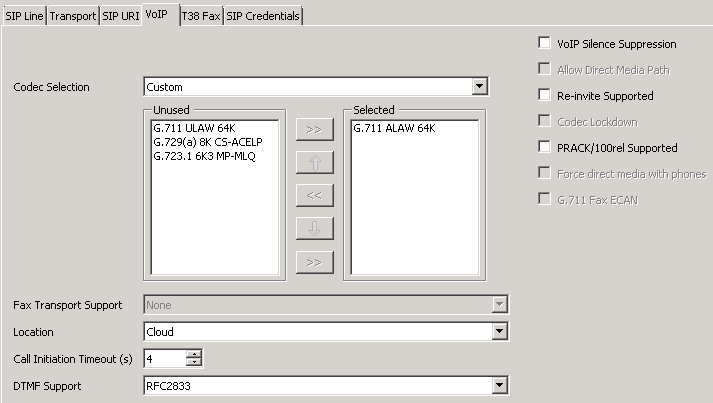
Select the custom G.711 ALAW 64K codec. This completes the SIP line configuration.
Create an ASR route
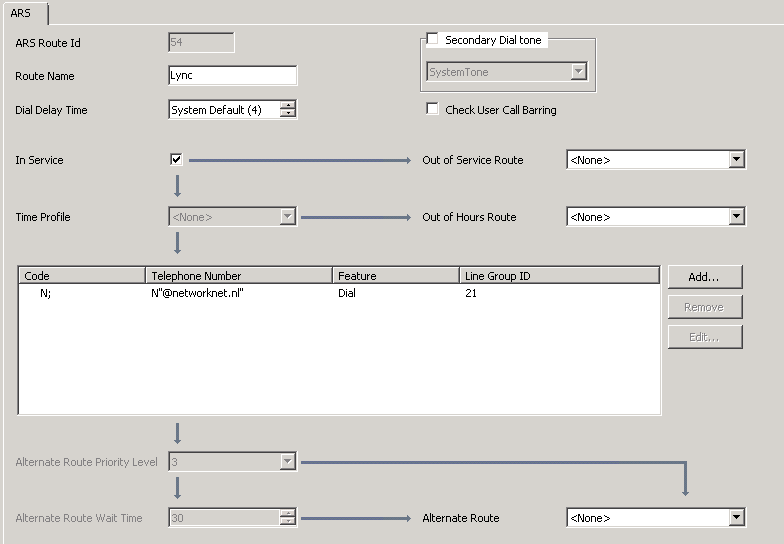
URIs containing Networknet.nl use the Dial feature and line group 21, the outgoing group for the SIP trunk to Lync.
| |
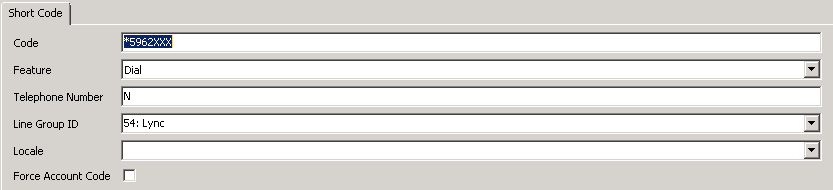
Create a short code for calls to Lync
A short code is needed to reach Enterprise Voice users or a dial-in access number. I send this traffic through ASR group 54.
| |
This completes the main IP Office configuration. I also added ASR codes to the main route:

Calling numbers arriving from Lync at IP Office had two additional zeros (00). I removed these in the main ASR route, avoiding further IP Office configuration.
Step 2: Configure Lync Server
Configure TCP port 5060 on the Lync Mediation Server.
![clip_image001[7]](/archive/images/wordpress/a1a1dfcba60abb56-clip_image0017.png "clip_image001[7]")
Next, create a PSTN gateway for IP Office in Lync Topology Builder.
Create the IP/PSTN gateway
![clip_image002[10]](/archive/images/wordpress/5f2835f84b7ec5da-clip_image00210.png "clip_image002[10]")
![clip_image003[8]](/archive/images/wordpress/82c6855647432d78-clip_image0038.png "clip_image003[8]")
FQDN: ipo.networknet.local
Make sure IP Office has a host A record in DNS.
![clip_image005[7]](/archive/images/wordpress/2499291bfe10c609-clip_image0057.png "clip_image005[7]")
Enable IPv4
![clip_image006[7]](/archive/images/wordpress/44914e092d47e370-clip_image0067.png "clip_image006[7]")
| |
With the SIP trunk created, I updated the Lync topology so it was ready to publish.
![clip_image007[7]](/archive/images/wordpress/c76549b22992bee2-clip_image0077.png "clip_image007[7]")
Configure voice routing
During Microsoft Lync Enterprise Voice training a few months ago, I learned about Lync Optimizer. It provides dialing rules for 80 countries for Lync Server 2010/2013. This gave me a working voice-routing configuration and helped me understand how voice policies fit together.
![clip_image008[7]](/archive/images/wordpress/18078bcf2bb8dea7-clip_image0087.png "clip_image008[7]")
I ran the script on my Lync server, selected the Networknet site and created a user-level dial plan.
![clip_image009[7]](/archive/images/wordpress/b4de9a9e4d356d24-clip_image0097.png "clip_image009[7]")
After the script finished, I refreshed Lync Control Panel. A new dial plan and the normalization rules for calls to the +31 PSTN network had been created.
![clip_image010[7]](/archive/images/wordpress/c77dacb9d2925991-clip_image0107.png "clip_image010[7]")
![clip_image011[8]](/archive/images/wordpress/2d50571b24aec912-clip_image0118.png "clip_image011[8]")
This saved a lot of work and worked immediately in my environment, without further troubleshooting on the Lync server.
The script associated the IP Office trunk with a route. The screenshot shows the +316 pattern for the mobile network.
![clip_image012[7]](/archive/images/wordpress/db4f7642bf4a5982-clip_image0127.png "clip_image012[7]")
After running the voice-routing test, I could confirm that everything was configured.
![clip_image013[4]](/archive/images/wordpress/78b7b02eff584677-clip_image0134.png "clip_image013[4]")
I then called out from my Lync client through the new SIP trunk, and my mobile phone rang.
![clip_image014[4]](/archive/images/wordpress/2f3e0aaeedc77518-clip_image0144.png "clip_image014[4]")
The screenshot uses an example mobile number; I tested with my own number.
I also used Test-CsPstnOutboundCall to check PSTN connectivity:
| |
![clip_image015[4]](/archive/images/wordpress/ddf58f6c02e0e455-clip_image0154.png "clip_image015[4]")
The result was Success, and my mobile phone rang.
In later posts, I will cover the dial-in conferencing bridge and troubleshooting SIP communication between IP Office and Lync. The IP Office Monitor tool helped me understand why some calls failed. Each environment has its own Lync and IP Office settings, so compare the logs for working calls with what happens when a call fails.
2 comments
Comments from the original WordPress site, kept read-only.
Hello, i am using a Neogate TG200 GSM SIP Gateway which is different to an Lync,i realy want to know how to make work with an AVAYA Ip Office .
Any suggestion !
Thanks !
Thanks for the information,
you mention that you are making line 18 but in "SIP URI " you used incoming 1 and outgoing 18 for channel 1 and for channel 2 used in 0 and out 21!