Windows Live Writer: “Image Upload Not Supported by Weblog”
While publishing a post with Windows Live Writer, I received an "Image Upload Not Supported by Weblog" error. I did not know why the included image failed to upload.
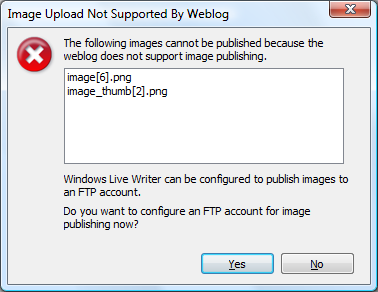
I searched Google and found a WordPress support discussion about the problem. I did not want to change PHP code, so I configured my FTP account settings and tried saving the post again. This time, the image uploaded successfully.
Configure FTP image uploads
Some blog services don't host images. If you use one of these services and you want to include images in your blog posts, you must contract with an ISP or hosting service to host your images on an FTP server, and then link to the images from your blog post. To change your Windows Live Writer image settings to upload images to an FTP server:
- Click Start, click All Programs, click Windows Live, and then click Windows Live Writer.
- If you use Writer with more than one blog, on the Weblog menu, select the blog that you want.
- On the Weblog menu, click Edit Weblog Settings.
- On the Images tab, click Upload images to an FTP server, and then click Configure FTP.
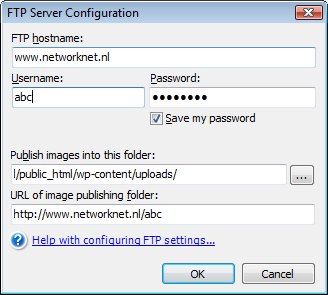
- Complete the following settings:
FTP hostname: The name of your FTP server.
Username and Password: The user name and password for your FTP account.
Publish images into this folder: Include the full path to the folder on the FTP server. To find the path, click the Browse button.
URL of image publishing folder: The web address of the folder where people can view your images. The address should start with http://, not ftp://.
Click OK, and then click OK again.