Cisco: Configure a trunk port for Hyper-V
In this example, I installed a Windows Server 2008 Hyper-V server and connected its network uplink to a switch port on the default VLAN 1. My lab uses a separate VLAN, 2200. I wanted to test the new VLAN ID feature in Microsoft’s hypervisor.
Configure the Cisco trunk port
Sign in to the Cisco switch, enter privileged mode and open the configuration terminal. Enter or paste the following configuration:
| |
In the Virtualization Management console, I created a new virtual machine and installed Windows Server 2003. During testing, I had a problem with the VM additions, and network connectivity did not work. I removed the existing NIC controller and added a legacy network adapter.
In the legacy network adapter settings, select “enable virtual LAN identification” and enter the VLAN ID. Click OK or Apply.
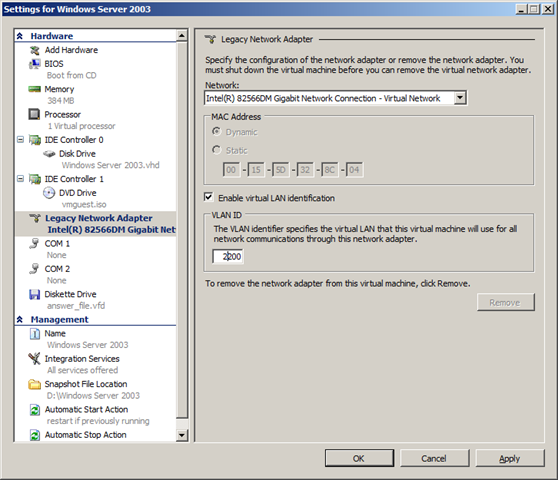
It is good to see this feature integrated into Hyper-V. ESX has supported VLANs for a while, and Microsoft is catching up with the upcoming release of its hypervisor.
2 comments
Comments from the original WordPress site, kept read-only.
It is highly recommended to NEVER put a trunk port in spanning-tree portfast to prevent broadcast storms and Cisco switches will not put a trunk port in portfast mode anyway so this line is useless in this case.
@Mathieu Tremblay
For a Hyper-V port, yes, you should indeed put the port in portfast mode. Cisco switches WILL put them in portfast mode as long as the command is issued with the "trunk" modifier at the end. This is recommended.
#spanning-tree portfast trunk