Cisco PIX: Publish a Windows Server 2003 PPTP VPN server
I installed a Windows Server 2003 PPTP/L2TP VPN server and tested it by creating a VPN connection. The first connection attempt returned "Disconnected. Error 721: The remote computer did not respond". The Windows XP client runs as a VMware virtual machine, and the VPN server is published behind a Cisco PIX 501 firewall.

I checked the VPN server and found the warning below. I also checked NAT: a static rule translated between private and public IP addresses. An ACL allowed 'any' TCP communication, and I added a second ACL for IP protocol 47 (GRE).
I signed in to my Windows Vista Enterprise client and recreated the same VPN connection. The Vista client connected wirelessly to my ADSL modem and had a direct connection to the VPN server. The Windows XP virtual machine was behind the Cisco PIX. I realised something was missing from my firewall configuration.
Allow PPTP through the Cisco PIX firewall
| |

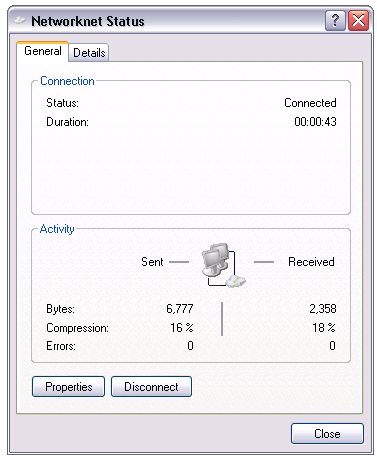
Adding "fixup protocol pptp 1723" to the configuration allowed the Cisco PIX firewall to establish the PPTP connection successfully.
References
2 comments
Comments from the original WordPress site, kept read-only.
1 mention
- to domain name
Thank You very much for your note, it was very useful for me in fixing a similar problem.
Thank you my good sir! This was just the answer we needed to fix our VPN issues.