VMware Player: a CMD startup script
Have you ever tried to start a virtual guest automatically with a script or shortcut in VMware Player? After logging in, you can open VMware Player and locate a virtual machine or choose a recent one, but this still requires manual steps. Perhaps you want to start a virtual machine at system startup through Scheduled Tasks, or give a user a shortcut to a prepared virtual machine for testing.
I created a small script for this. Create a new file in Notepad and paste the commands below. Check that the VMware Player installation path and the location of your VMware guest are correct.
@Echo off
REM VMWare Player cmd script for virtual guest startup
REM Ivan Versluis @ Networknet.nl
REM Email: [email protected]
REM Date: 29/01/2008
"C:\Program Files\VMware\VMware Player\vmplayer.exe" "C:\VMWareGuests\Server\Windows Server 2003 Standard Edition.vmx"
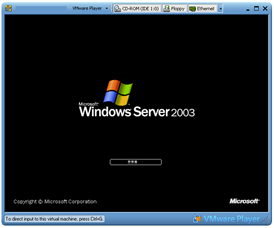
The result ;)
12 comments
Comments from the original WordPress site, kept read-only.
Thank you for putting this up here. I've been looking for it for about an hour, putting a virtual machine on my new image for work and I wanted to make it easier for the employees to get into Windows XP when they need it.
Thanks for the tip, any success in shutting down the virtual machines when Windows 2008 R2 shuts down?
I think this should be doable using power shell, but I don't have enough information about that yet.
where is the start ?????????????????????????
where is the finish?????????????????????????????
do you get an email everytime we switch the computer on ??????????????///
You made my day :)
The script is ok if you manually click it. But how if you want to fully automatically run the vm? I try put the script on the wind task scheduler, but somehow it not run properly. I mean, that when I ping the vm, it replying, but i cannot open / remote to the machine.
Any other suggestion ?
Great post... very simple and works well.
Bisnar - put the script in your startup folder for all users. If you setup automatic login (obv. some security issues here, so only do this in non-prod evironments) but you can use the command "netplwiz" to bypass the welcome screen in windows 7 (click "windows key" + R --> type "netplwiz" in the run command box that appears).
Note - add "exit" to a new last line to automatically close the bat file so that black box doesn't stay on the screen.
Thanks a lot, and for stop the machine in command line?
works great, only one problem, the command never exits. There are 2 more that need to run at the end of my batch file and the cmd just stops and waits for me to actually close the vm before proceeding. Thoughts?
call "C:\Program Files (x86)\VMware\VMware Player\vmplayer.exe" "%USERPROFILE%\Documents\Virtual Machines\<vm>.vmx"
then crickets
it should also be noted that if the command is run straight from cmd it works perfectly
nm, i figured it out:
use start not call
start "C:\Program Files (x86)\VMware\VMware Player\vmplayer.exe" "%USERPROFILE%\Documents\Virtual Machines\<vm>.vmx"
One more problem: this vm is being used for development, so after it is started up I need to map it:
start "C:\Program Files (x86)\VMware\VMware Player\vmplayer.exe" "%USERPROFILE%\Documents\Virtual Machines\<vm>.vmx"
call net use E: <name> "<password>" /user:<user>
but if the vm has not finished its startup by the time net use is called, I am pretty sure bad things will happen. Is it possible to basically do a "vm has started" callback? If not I can just put in
sleep 30
I bet that will cover it