BitLocker: encryption in a virtual machine without TPM or USB
I wanted to learn how to use BitLocker encryption. My requirement was to enable BitLocker drive encryption on a virtual machine without a TPM security chip or access to USB devices. Before starting, I read the Windows BitLocker Drive Encryption Step-by-Step Guide from TechNet and found the following statement:
For a non-TPM scenario, you use a startup key to authenticate yourself. The startup key is located on a USB flash drive inserted into the computer before the computer is turned on. In such a scenario, your computer must have a BIOS that can read USB flash drives in the pre-operating system environment (at startup). Your BIOS can be checked by the hardware test near the end of the BitLocker setup wizard.
Using USB removable storage on this virtual machine is not going to work. The only way to get BitLocker working is to change a Group Policy setting to allow it to work without a TPM chip and use a floppy disk to store the startup key.
A floppy disk is available during the Vista boot process when the system runs as a virtual machine. I successfully ran BitLocker preparation because my installed system required an additional volume.
Enable BitLocker on a virtual machine without TPM
Install a Windows Vista SP1 virtual machine using the Enterprise or Ultimate edition.
- Make sure the disk has been partitioned with an additional volume. Use SHIFT+F10 to perform these steps in Vista Setup.
Code4 lines
1
2
3
4
create partition primary size=1500 assign letter=S create partition primary assign letter=c
If you cannot partition the hard disk, use the BitLocker Drive Preparation Tool.
Change the GPO setting:
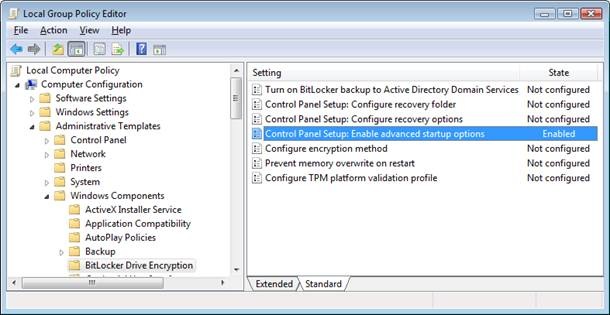
- Open Gpedit.msc and locate “Control Panel Setup:Enable advanced startup options” in Computer Configuration/Administrative Templates/Windows Components/Bitlocker Drive Encryption. Configure “Control Panel Setup: Enable advanced startup options”, check Allow Bitlocker without compatible TPM chip and reboot.
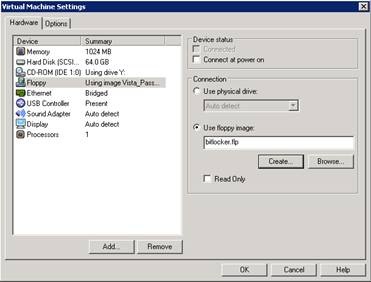
Make sure a floppy drive is configured for the virtual machine. Create a new bitlocker.flp file and format the disk.
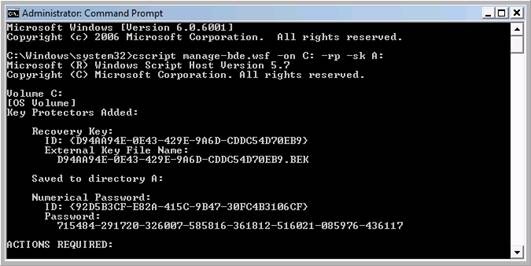
Open a privileged command prompt and run:
| |
Reboot and make sure the floppy drive is the last option in the BIOS boot order.
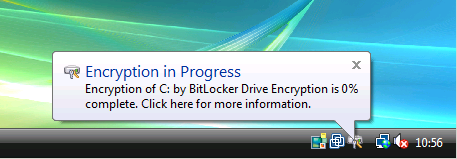
Encryption is now in progress. BitLocker will encrypt the complete partition and, in my case, use 64 GB of the virtual hard disk. Once the process finishes, I will have a 64 GB virtual disk on the system.
These steps let me test the available BitLocker features and options. If you buy new hardware today, a TPM-compliant chip will be available.
References
3 comments
Comments from the original WordPress site, kept read-only.
I Wrote a method for windows 7 and 2008 R2 to use another diskdrive to store the bitlocker key rather than usb.
How to Encrypt VMware VM running Windows 2008 R2 with Microsoft Bitlocker
http://www.christowles.com/2010/10/how-to-encrypt-vmware-vm-running.html
Dear Chris,
Thanks for stopping by. I have read your article and I like that. At my company we are not using that but something to keep in mind for the future.
check it out