Data deletion: Check a USB disk before reuse
Today I moved data from one USB disk to another with robocopy.exe and its /move switch. Before returning the old disk to the IT department, I checked its partition with a deleted-file recovery tool. It found 18000 files during a 10-minute scan of the apparently empty volume.
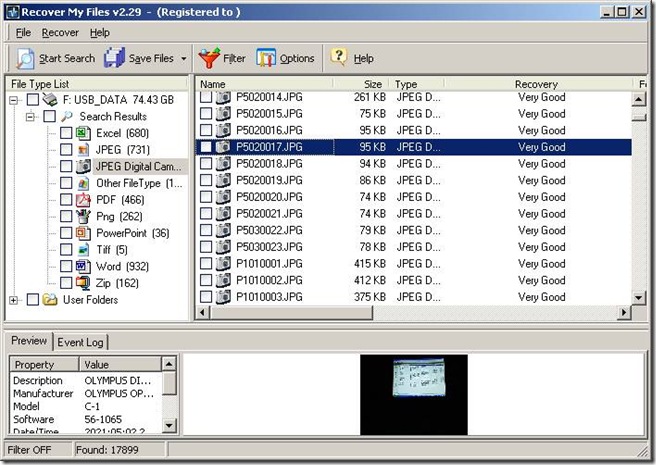
Before returning the USB disk for reuse, I will make sure no recoverable data remains. I have used gdisk with the dod option to wipe physical disks. For this USB disk, I am going to install the free Eraser tool.
Install Eraser
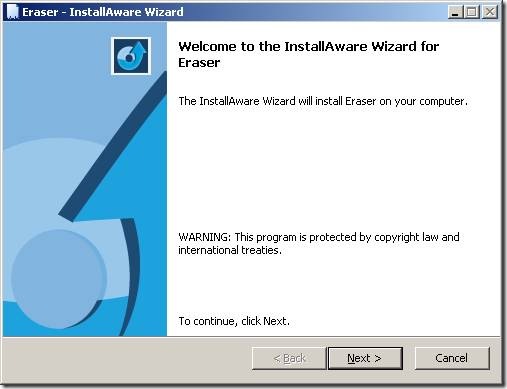
Click Next.
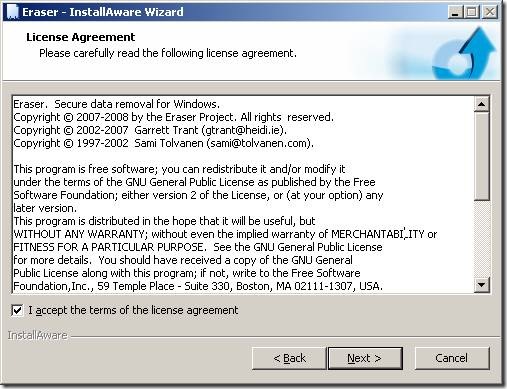
Accept the license and click Next.
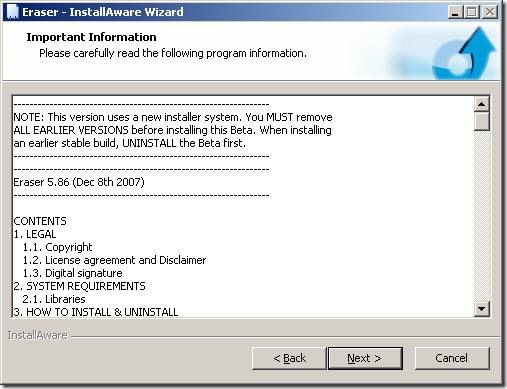
Click Next.
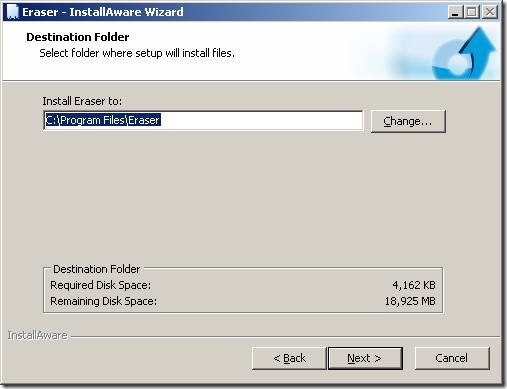
Click Next.
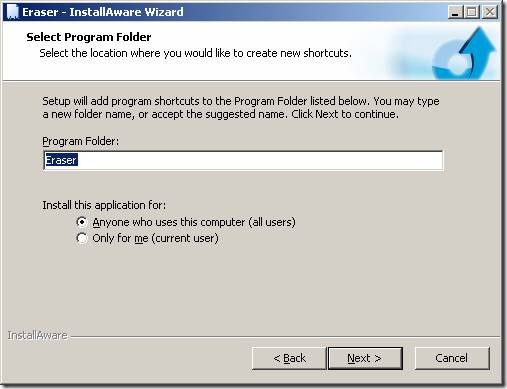
Click Next.
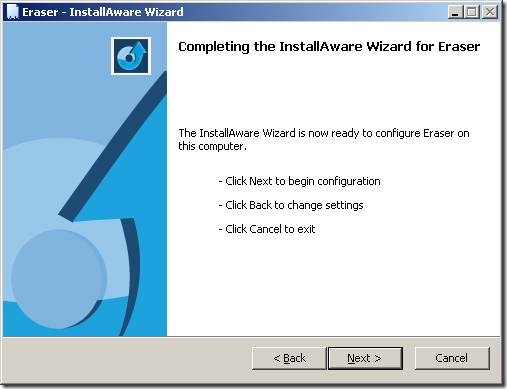
Click Next.
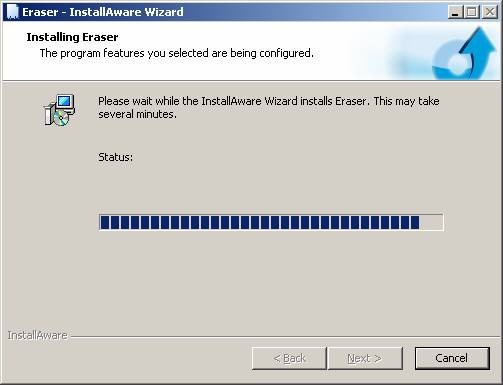
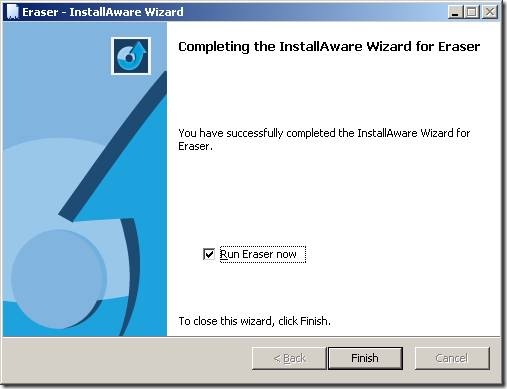
Click Finish to complete the installation.
Erase and check the data
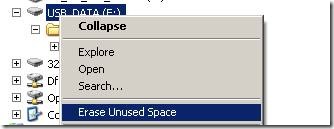
Locate the disk, folder or file, right-click it and select Erase:
Review Options and click Yes.
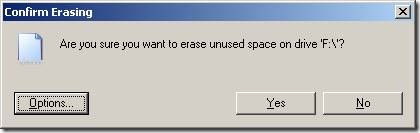
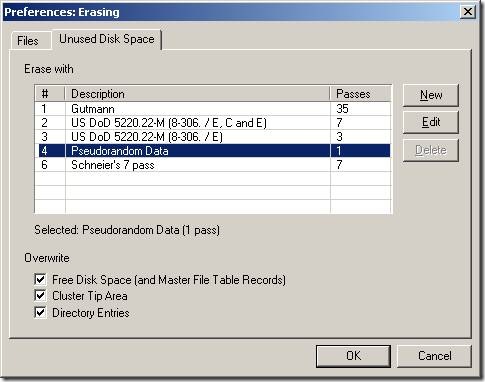
The data has been overwritten.
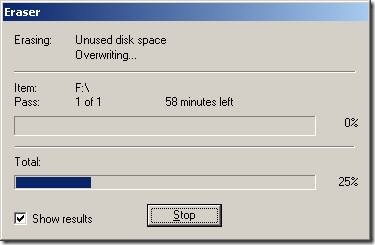
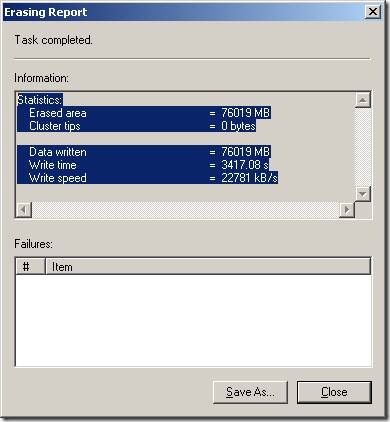
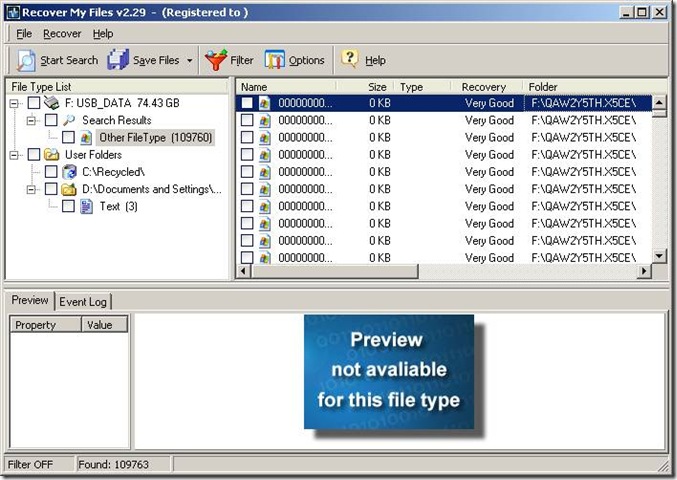
After erasing, I ran “Recover My Files” again. This time it could only read the rubbish written by Eraser.
Deleting a file in Windows and emptying the Recycle Bin does not remove the file’s data from the physical disk. Only its reference information is removed from the file allocation table, leaving the data recoverable with simple tools.