Windows Server: SSH remote console with freeSSHd
If you manage routers, switches and Linux machines, it can make sense to install an SSH daemon on your Windows machines too. I installed freeSSHd, a free SSH daemon, on a couple of my Windows Server 2008 machines. Using SSH gives me a consistent way to administer my environment.
What is freeSSHd?
freeSSHd, like it's name says, is a free implementation of an SSH server. It provides strong encryption and authentication over insecure networks like Internet. Users can open remote console or even access their remote files thanks to buit-in SFTP server.
Current version: 1.2.1
Install and start freeSSHd
Download the latest version of freeSSHd.
Run the setup file and allow it to proceed.
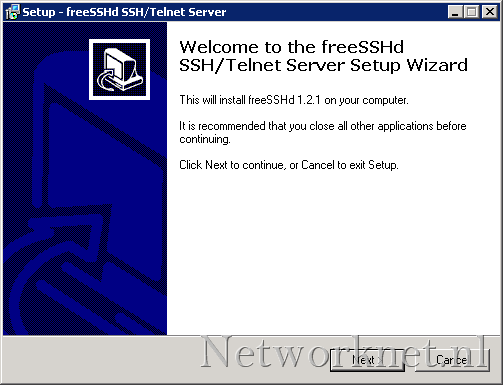
Click Next, Next, Next, Next and Install. Click Yes to generate the private keys.
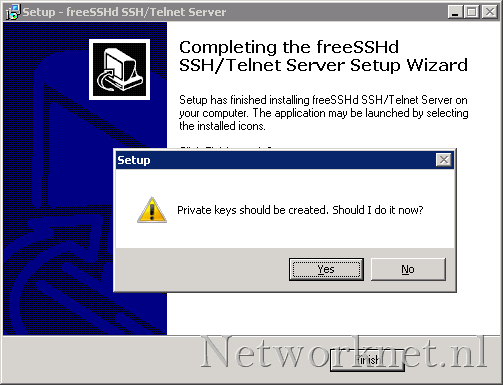
Click Yes to run freeSSHd as a system service.
Click Finish to close the installation wizard.
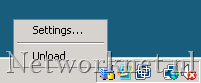
Open the freeSSHd desktop shortcut. A new icon will appear on the right side of the taskbar. Right-click it and choose settings.
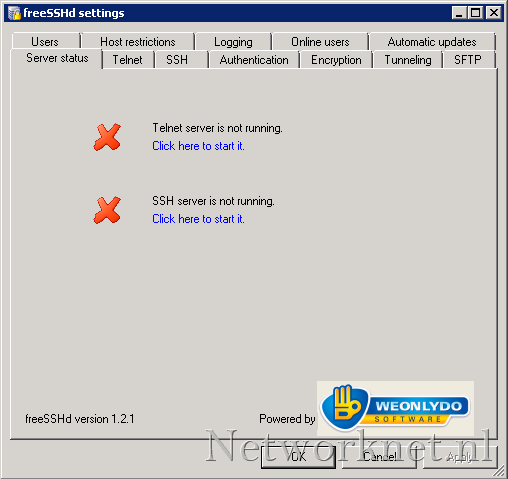
Select “Click here to start it” to start the SSH server service.
Start PuTTY or add an mRemote SSH connection to your Windows Server:
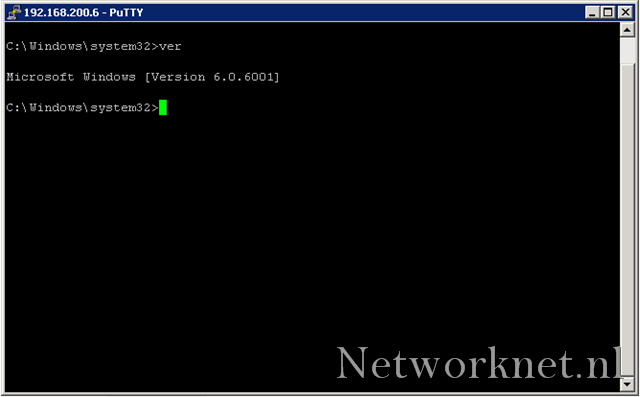
Don’t expect the same performance as a Linux-based SSH server. For example, you cannot scroll. At least there is a remote shell, and you can securely transfer files to it over the Internet.