VMware: VirtualCenter Server service fails to start
My Openfiler iSCSI SAN failed, and all virtual machines on my VirtualCenter Server needed to be rebooted. After the reboot, the “VMware VirtualCenter Server” service failed to start and showed this error:
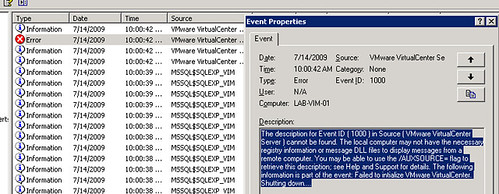
I opened Windows Explorer, browsed to C:\Documents and Settings\All Users\Application Data\VMware\VMware VirtualCenter\Logs and opened the latest vpxd-XX.log file. It contained the following error:
I opened the C:\Documents and Settings\All Users\Application Data\VMware\VMware VirtualCenter\ssl folder, but it was empty. I searched for rui.crt in C:\ and found similar certificates in two other directories:
- C:\Program Files\VMware\Infrastructure\Converter Enterprise\ssl
- C:\Program Files\VMware\Infrastructure\Update Manager\SSL
I copied C:\Program Files\VMware\Infrastructure\Converter Enterprise\ssl to C:\Documents and Settings\All Users\Application Data\VMware\VMware VirtualCenter\ssl\ and started the “VMware VirtualCenter Server” service again. This time, it started successfully. Log in with the VMware Virtual Infrastructure client and connect your ESX hosts again.
References
5 comments
Comments from the original WordPress site, kept read-only.
Thank you very much Ivan!!!!
Can also happen if the DB gets over 4GB, Here's some more information that might be helpful,
vSphere - Virtual Center Server Service Stops
Pete
PeteNetLive
Thanks Pete. I approved your comment due to inserted hyperlink.
Very useful KB and it applies to my post too. If your DB becomes 4 GB large and you need to keep the database then moving it is also a good reason.
i could solve this problem with Ad server sync(this may be related with ssl)
Atleast one of the solution would definetly Work
1)Move default website to port 8080
2)All you should have to do is delete the ODBC connection and create a new one this time specifying SQL Server authentication instead of Windows authentication
3)disable SQL Server Reporting Service