Windows Virtual PC: Attach a virtual floppy disk
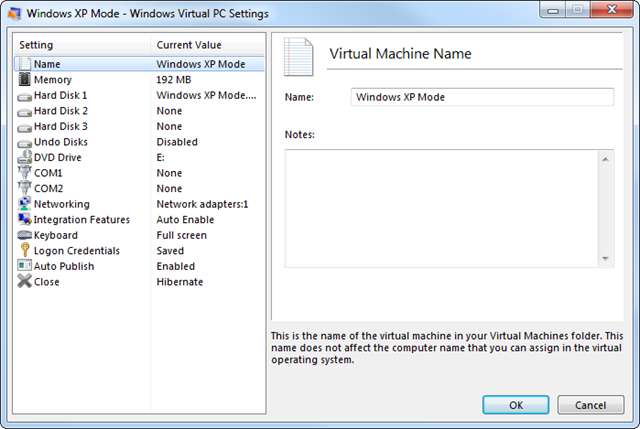
Windows Virtual PC does not show an option to add a virtual floppy drive in its graphical interface. It can still attach and use VFD files, but you need to use the Command Prompt. The settings for my “Windows XP Mode” virtual machine show no floppy-drive option.
Attach the VFD file
Microsoft provided a script for attaching a VFD file. You need to create the VFD file before attaching it.
Download the Floppy Drive Scripts.zip script package.
Running FloppyDrive.vbs shows an action for attaching a VFD file. When I supplied the parameters, I received the following error:
| |
| |
The script did not create the VFD file, so I installed WinImage.
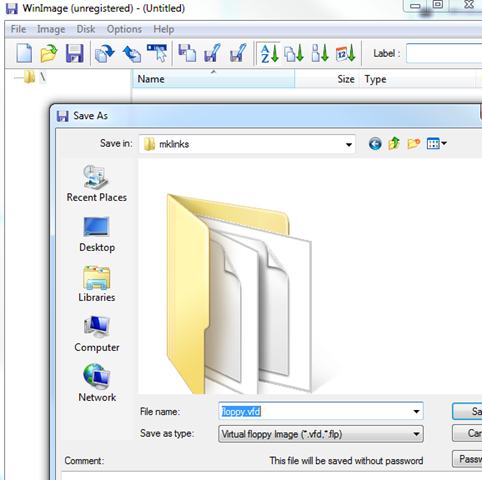
Create a new file in WinImage and save it as floppy.vfd. I then ran FloppyDrive.vbs again, and the file was attached.

Check the virtual machine configuration
The VMC file now shows the virtual floppy in the configuration. You can also add this configuration manually to perform the same action as the VBScript.
| |
5 comments
Comments from the original WordPress site, kept read-only.
can i only do this with a floppy or also with a normaal cd?
Hi, dude, I've followed all steps, but the driver created is Write-Protected. How to solve this? I'm running a Windows 7 professional 64-bits in XP mode. Thank you.
Hey Eduardo,
Can you send me an email with the screenshot you are getting?
Dear Ivan Versluis, thanks for replying.
I have managed to solve the write-protection issue. This was due to Windows 7 write permissions in the root folder, where I've put the vfd file. When I moved that file to My documents folder, it worked.
Regards.
I get errors running bot scripts:
You cannot call a method on a null-valued expression.
At E:\Apps\Virtual_Machine_Additions\Floppy_Drive_Scripts\FloppyDrive.ps1:40 char:39
+ $vmFloppyDrive = $vm.FloppyDrives.item <<<< (1)
+ CategoryInfo : InvalidOperation: (item:String) [], RuntimeException
+ FullyQualifiedErrorId : InvokeMethodOnNull